Timetable
A timetable is not a document you edit — it is a versioned record that moves from draft to review to published. Only the published version is visible to students and lecturers, and publishing a new one archives the last.
Scheduling classes into days, periods and rooms, then publishing them.
RegistrarAcademic Registry StaffCampus DirectorDean
- Teaching days and period grids configured per campus and term
- Courses mapped to a curriculum version
- Lecturers assigned
- Rooms defined
A published version that fills students' and lecturers' timetables.
The Timetable Dashboard
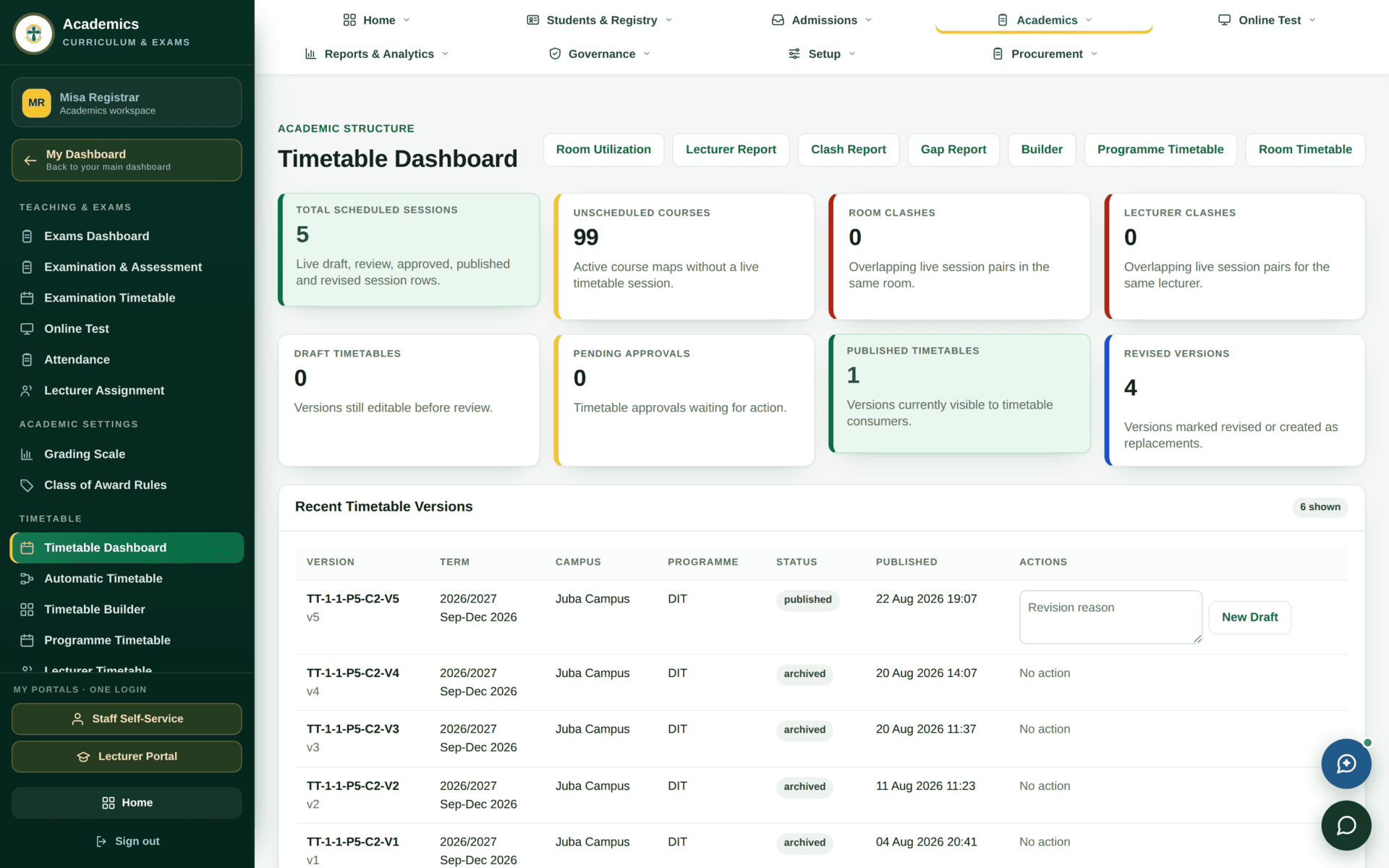
| Tile | The screen's own definition | What to do about it |
|---|---|---|
| Total scheduled sessions | Live draft, review, approved, published and revised session rows | Your working total |
| Unscheduled courses | Active course maps without a live timetable session | The real backlog. This is the number to drive to zero before publishing |
| Room clashes | Overlapping live session pairs in the same room | Must be zero before publishing |
| Lecturer clashes | Overlapping live session pairs for the same lecturer | Must be zero before publishing |
| Draft timetables | Versions still editable before review | Yours to work on |
| Pending approvals | Timetable approvals waiting for action | Chase the named approver |
| Published timetables | Versions currently visible to timetable consumers | What students and lecturers actually see |
| Revised versions | Versions marked revised or created as replacements | The history of changes after publication |
A lecturer reporting “my timetable is empty” is usually looking at a term whose
timetable is still a draft. Published timetables on this dashboard is the
honest answer: if it is 0 for that term, nobody can see anything, and no amount of
looking in the lecturer portal will change that.
Versions, and why they exist
Timetable versions are named automatically in the form
TT-{year}-{term}-P{programme}-C{campus}-V{n} — for example
TT-1-1-P5-C2-V5. The Recent Timetable Versions table lists them
with their status: published for the live one, and
archived for those it replaced.
You do not edit a published version. You create a replacement draft — the New Draft button beside the published row — and the Revision reason box next to it is compulsory. That reason is what a Dean or lecturer reads when they ask why the room changed in week six. Write something a stranger could act on: “LR2 unavailable from wk6, moved to LR5”, not “update”.
Building a timetable
There are two ways in, and they produce the same kind of version.
By hand — the Timetable Builder
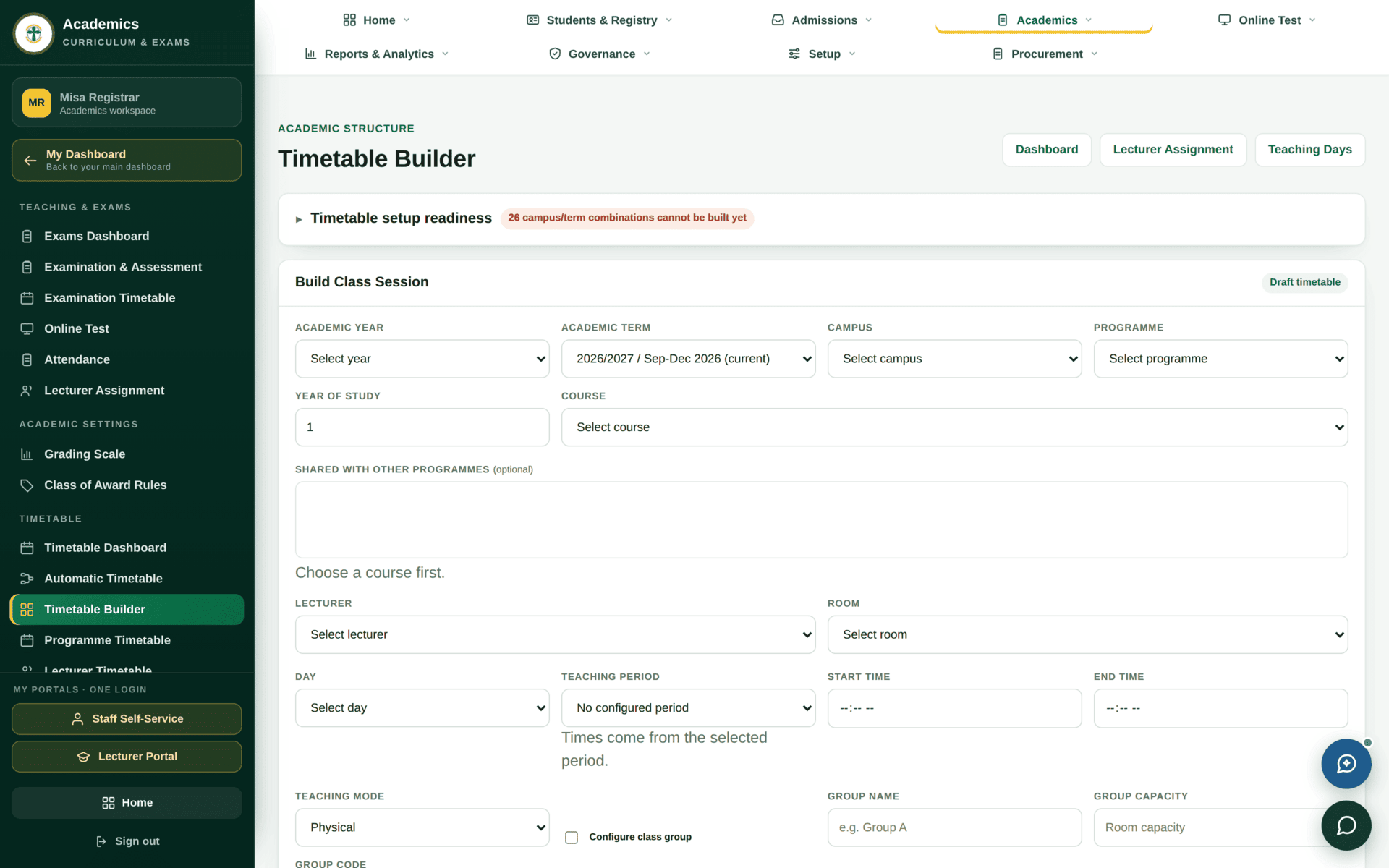
The builder has its own step-by-step guide with a close-up of every field, a table for diagnosing empty dropdowns, and the exact wording of every refusal it can give you: The Timetable Builder, step by step →
Automatically
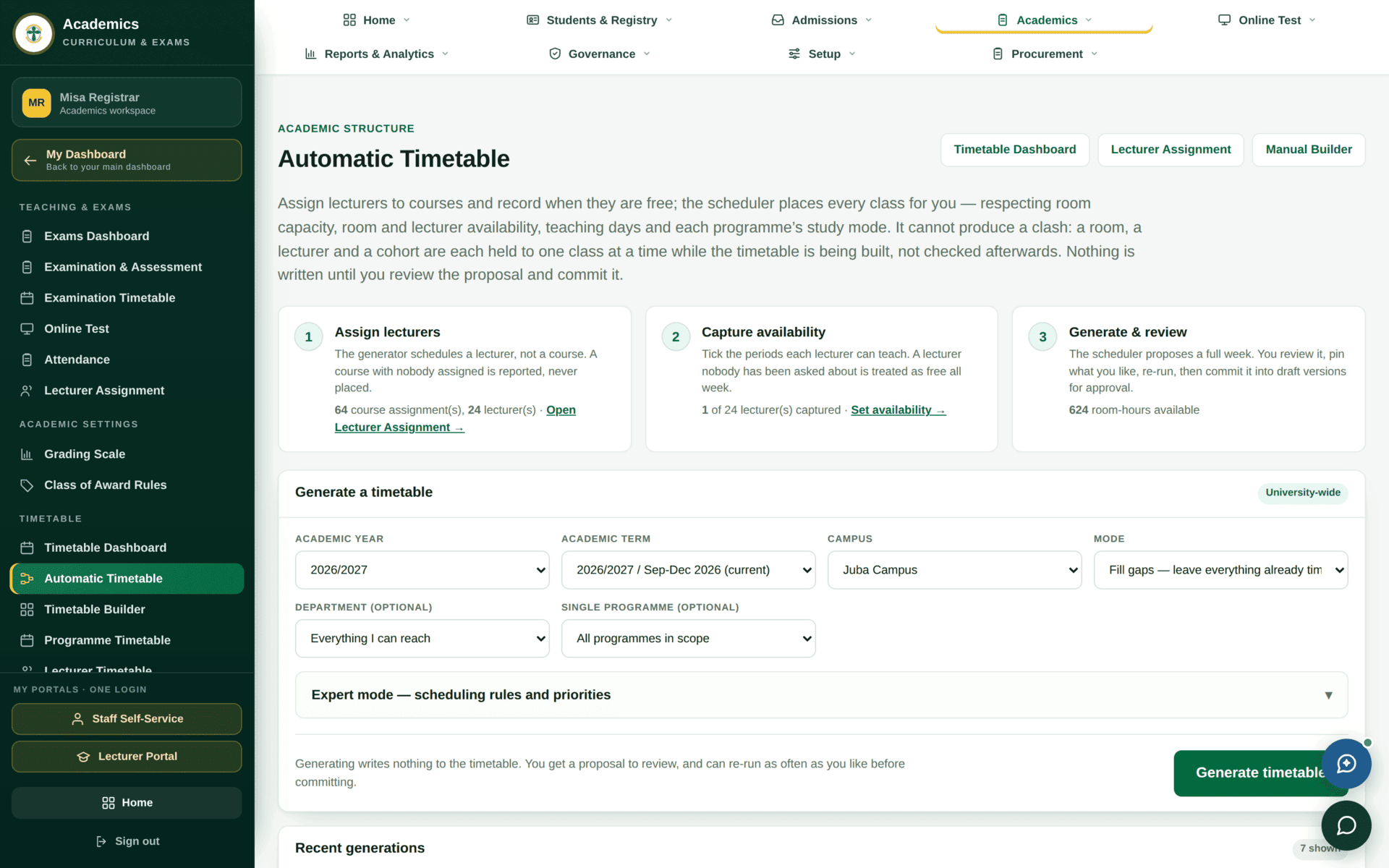
The automatic builder is a starting point, not a finished timetable. Treat its output as a draft to be checked against the clash reports before it goes near review.
The reports that make a timetable publishable
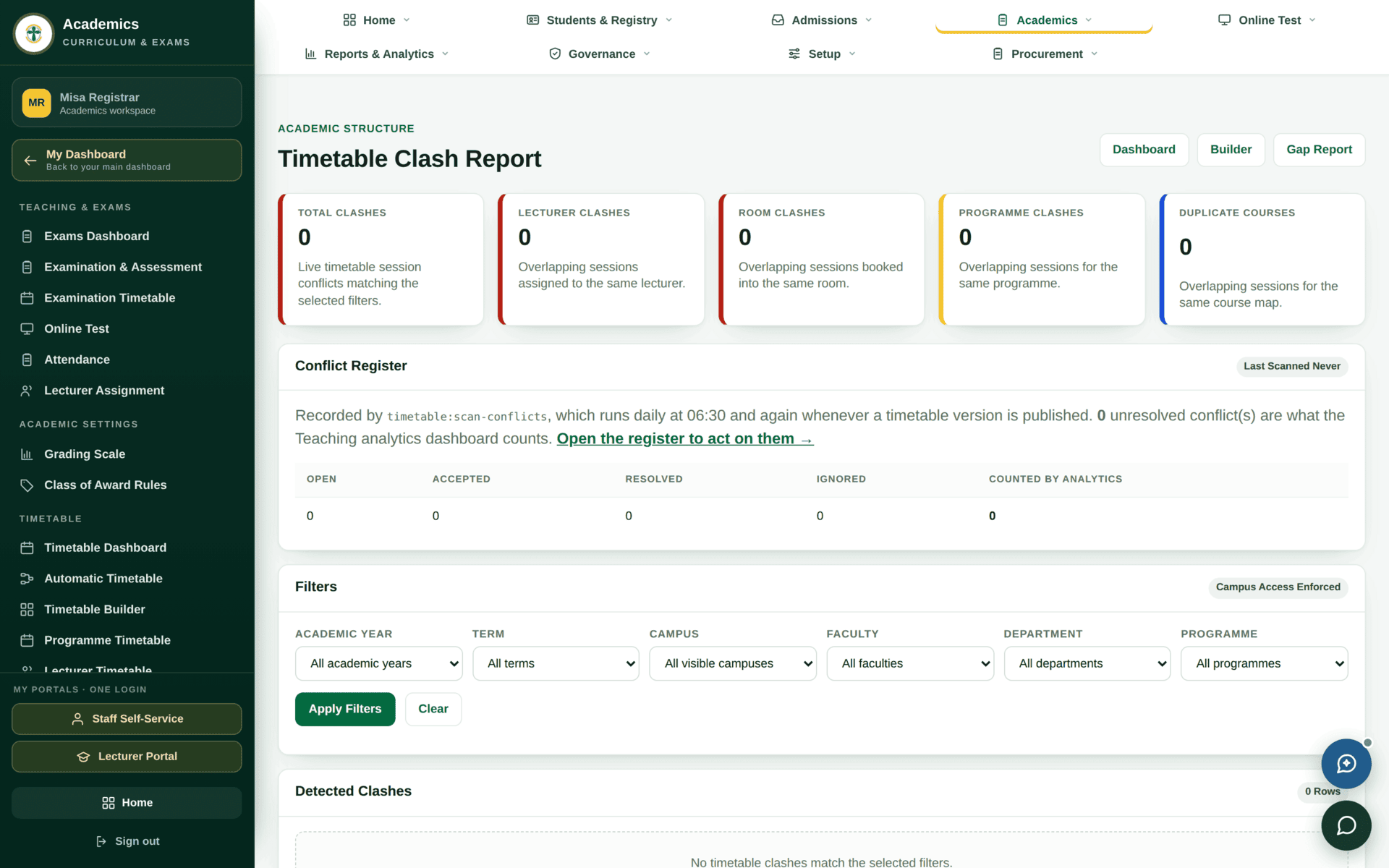
| Report | Answers |
|---|---|
| Clash Report | Which sessions collide, in a room or for a lecturer |
| Gaps & Unused Periods | Where the grid is empty — capacity you are not using |
| Conflict Register | Conflicts recorded and how they were resolved |
| Room Utilization | How hard each room is worked |
| Lecturer Load | Teaching hours per lecturer — read alongside HR workload |
| Unscheduled Courses | Courses with no session at all. The publication blocker |
Publishing the Sep–Dec 2026 timetable for DIT, Juba
| 1 | Academics›Timetable Dashboard — note Unscheduled courses |
| 2 | Build the missing sessions in the Builder, or generate a draft with Automatic Timetable and correct it |
| 3 | Run Unscheduled Courses again — drive it to 0 for this programme and term |
| 4 | Run Clash Report. Room clashes and lecturer clashes must both read 0 |
| 5 | Run Room Utilization as a sanity check — one room at 95% and three at 10% usually means a scoping mistake |
| 6 | Submit the version for review. It leaves your hands; Pending approvals goes up by one |
| 7 | After approval, publish. Published timetables goes to 1 for this scope and the previous version becomes archived |
| 8 | Verify as a consumer: open the lecturer portal and the student portal. If it is not there, it is not published |
If the timetable refuses
| Symptom | Cause | Fix |
|---|---|---|
| A dropdown in the builder is empty | The reference data behind it does not exist for this campus and term | The builder guide has a table mapping each empty dropdown to the screen that fills it |
| No teaching day configured | Timetable setup has no days for this campus and term | Timetable setup — Registry |
| The period box says No configured period | No period grid for this campus and term | Timetable setup; until then you must type times by hand |
| You cannot save a change | The version is published, not draft | Create a replacement draft and give a revision reason |
| Students see nothing | No published version for their programme, year and campus | The dashboard's Published timetables tile |
| An HOD cannot run the automatic builder | That screen is not open to the HOD role | Ask Registry to generate it |