Finding your way around
The administration screen has exactly three navigation controls. Once you can name them, you can find anything: the bar across the top changes module, the sidebar on the left changes task, and the block at the bottom of the sidebar changes portal.
Reading the admin screen and reaching any page in two clicks.
All office staff
- A signed-in administration account
You can navigate without being told a URL.
The shape of every admin screen
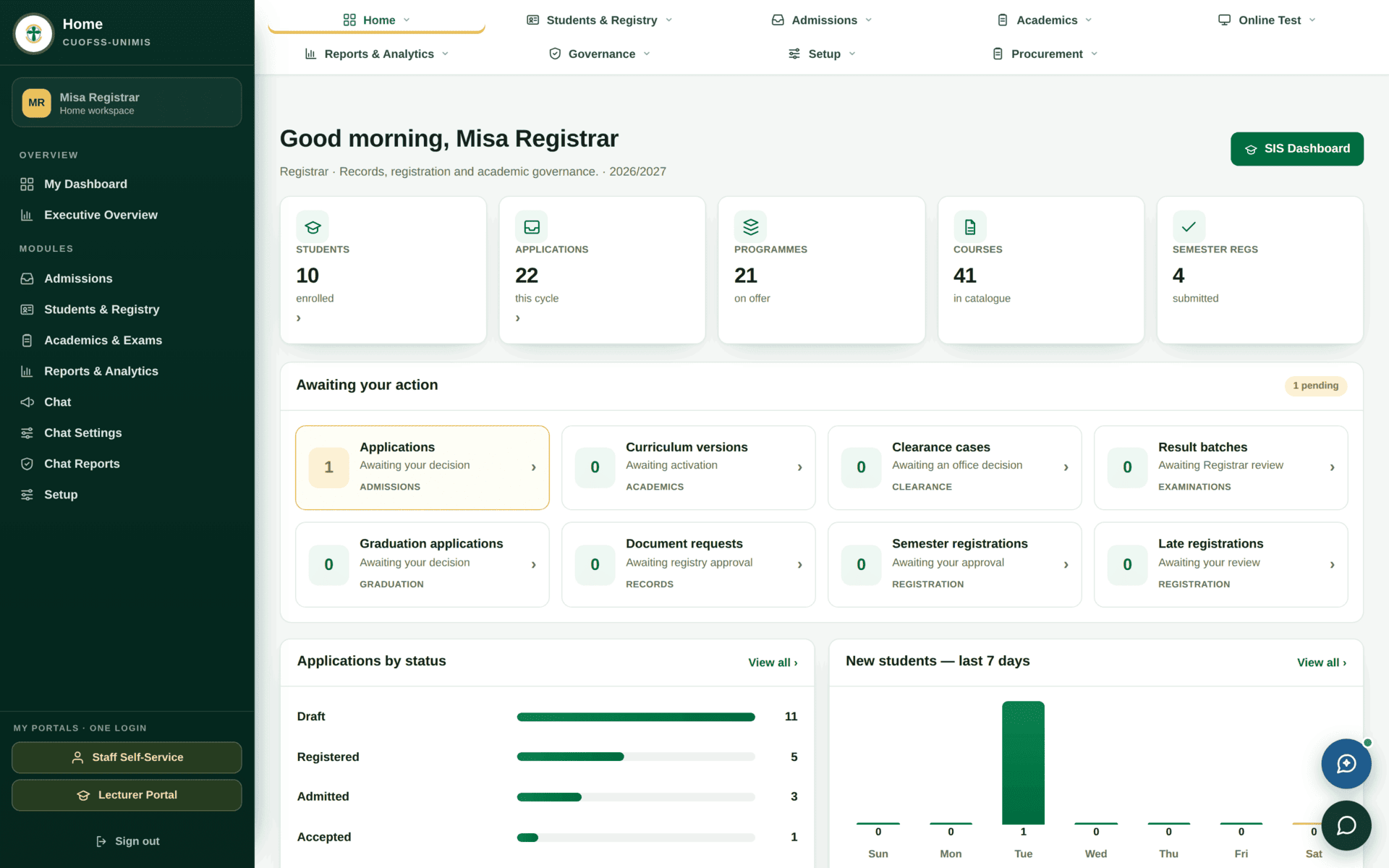
| Control | Where | What it changes |
|---|---|---|
| Module bar | Across the top | Which module you are in — Admissions, Students & Registry, Finance… |
| Task sidebar | Down the left, dark green | Which screen within that module |
| My Portals | Bottom of the sidebar | Which portal — admin, staff self-service, lecturer |
The module bar

- Each module name has a small chevron. Click the name to go to the module's home page; click the chevron to drop down its main tasks without leaving the page you are on.
- The bar wraps onto two rows on purpose. If you have many modules, look at the second row before deciding something is missing.
- On a phone or a narrow window the bar becomes a single row you can swipe sideways.
If a module is not on your bar, you do not have permission for it — no amount of searching will find it. That is the quickest way to check your own access before raising a request.
The task sidebar
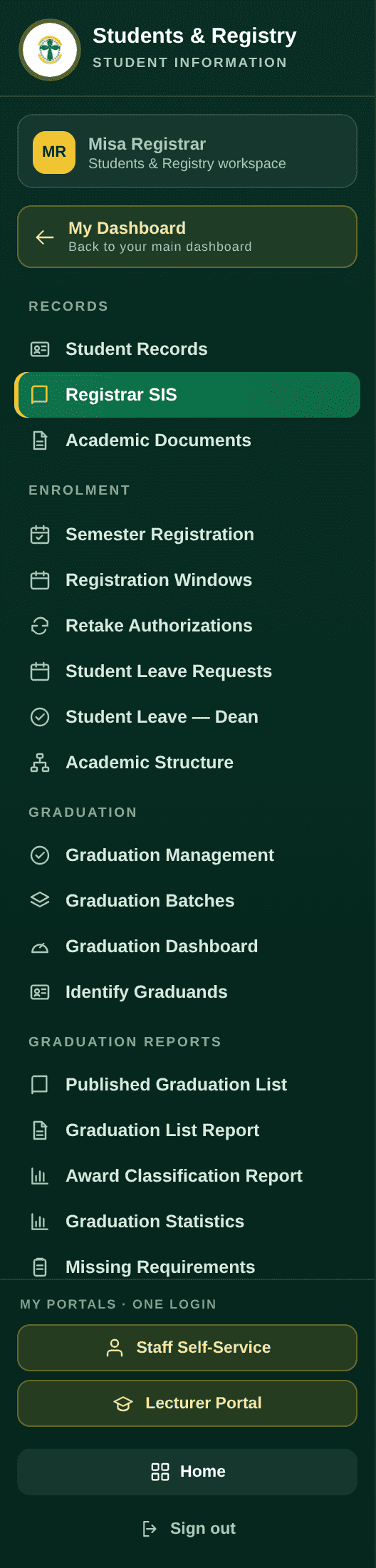
The dark green column on the left lists every screen in the current module, grouped under small capitalised headings. It changes completely when you change module.
How to read it
- The chip at the top shows your name and which workspace you are in. If it names someone else, you are on a shared computer that is still signed in as them — sign out before doing anything.
- My Dashboard is always the way back to your own landing page, whatever depth you have reached.
- The group headings follow the order the work actually happens in. In Students & Registry that is Records, then Enrolment, then Graduation, then the reports about graduation. If you are unsure which screen you need, the group heading is usually enough to narrow it to two.
- The highlighted item with a gold bar is the screen you are on.
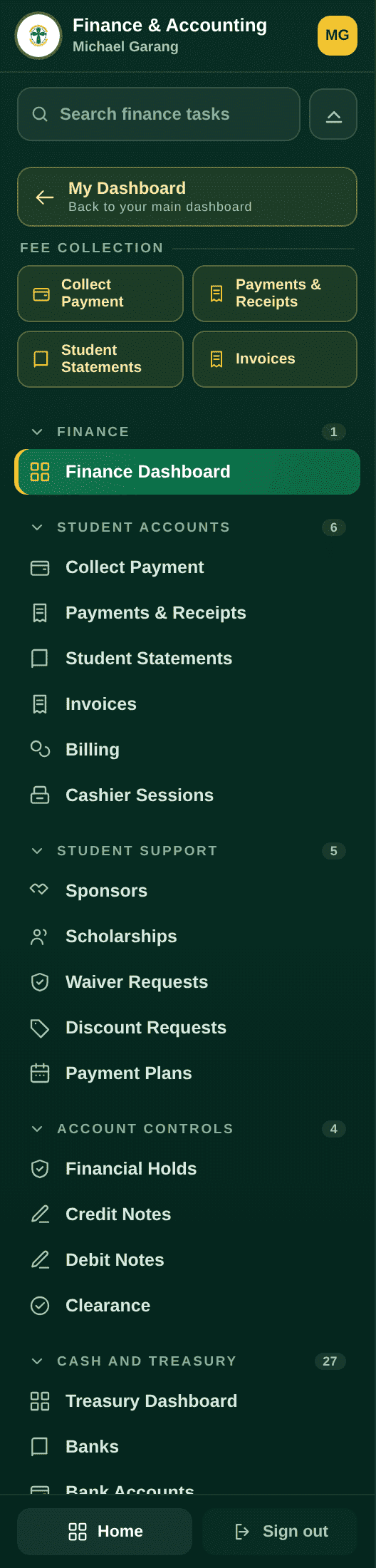
- Some sidebars have a search box at the top — Finance's says Search finance tasks. It filters the sidebar itself, which is far faster than scrolling a long module.
Moving between portals
At the bottom of every sidebar is My Portals · One login. Because the whole system shares one sign-in, these buttons take you straight across — no second password.
- Staff Self-Service — your own HR record, leave and payslips.
- Lecturer Portal — only if you teach.
- Home — the module launcher, a grid of every module you can reach.
- Sign out — ends the session everywhere, including the other portals.
Signing out of one portal signs you out of all of them, which is what you want. Closing the browser tab does not. Always use Sign out on a machine anyone else uses.
Patterns that repeat on every page
Once the navigation makes sense, the pages themselves are built from the same handful of parts.
| What you see | What it is | How to use it |
|---|---|---|
| A row of tiles with big numbers | Counts for the filter behind them | They are buttons. Click a tile to list exactly those records — much faster than building the filter by hand |
| Waiting on you / Awaiting your action | Your personal queue for this module | Start here every morning. If it is empty, nothing in this module needs you |
| A row of tabs above a table | Sub-screens of one workspace, not separate pages | Each tab is one task. Tabs load when you click them, so give a heavy one a moment |
| A filter strip with an Apply button | The list below is filtered only when you press Apply | Changing a dropdown does nothing until you press it. This catches everyone once |
| Export Excel / Export CSV | The current list, with your filters applied | Set the filters first, export second. The export is not the whole table |
| A wide table that runs off the screen | A table with more columns than the window | Scroll the table itself sideways — the page does not scroll, the table does |
| Two round buttons, bottom right | Internal chat and the help launcher | Chat reaches colleagues inside the system — see Chat |
Do not navigate to a list and then filter it. Go to your module's dashboard and click the tile for the state you care about. The tiles are pre-built filters, and they are always the shortest route to the records that need you.