What UniMIS is
CUofSS-UniMIS carries a person from the day they apply to the day their award is conferred, and carries staff from appointment to separation. The seven web addresses are seven doors into one building.
Understanding what the system covers and why every module feels the same once you learn one.
Everyone
- Nothing — read this before your first sign-in
You know which chapter to open next.
It is one system, not many
Because it is one system, information is entered once and read everywhere. A payment taken at the cashier's desk is the same payment the Registrar sees when deciding whether a student may register, and the same payment the Clearance office sees before signing a graduand off. Nothing is re-typed between offices, and nothing is calculated twice.
That has a consequence worth knowing on day one: if a figure looks wrong on your screen, the fix is almost never on your screen. It is in the office that owns that figure. This manual names the owner in every chapter, so you know where to send it.
At every step the system records who acted, when, and what changed. Records are not deleted — they are moved to a new status, so the history stays readable years later. This is why you will often find a Void or Cancel button where you expected Delete.
The shape every process follows
Almost every process in UniMIS has the same four beats. Learn them once and every module becomes predictable, even one you have never opened:
| Beat | What it looks like | What you do |
|---|---|---|
| Submit | A form with a Save draft and a Submit button. While it is a draft it belongs to you and can be edited or deleted. | Fill it, check it, submit it. After submitting, you can usually still see it but no longer change it. |
| Review | A queue on someone else's screen, usually called Waiting on you or Awaiting your action. | Open the record, read it, then Approve, Return for correction or Reject — always with a reason. |
| Approve | A chain of offices shown at the top of the record, with a tick against the steps already done. | Nothing, if it is not your step. The chain says whose turn it is. |
| Publish | A status change that makes the result visible to the person it concerns — a list, a letter, a released mark. | Publishing is deliberate and separate. Work is not visible to students until someone publishes it. |
“I approved it, why can't the student see it?” — because approving and publishing are two different beats. Marks are approved through the result workflow and then released; admissions decisions are made and then published in a batch. Look for a publish or release step at the end of your process.
What the system covers
- Admissions, from the public application form to the published admission list
- Student records and the master register
- Semester and course registration, including retakes and add/drop
- Curriculum, programmes, courses and their approval workflow
- Timetabling: days, periods, rooms, clash checking and publication
- Teaching: course allocation, materials, class lists, attendance
- Examinations and marks, plus on-screen assessment, invigilation and moderation
- Library: catalogue, copies, circulation, fines, acquisitions and the public catalogue
- Student finance: fee structures, invoicing, payments, waivers, sponsors
- Accounting: chart of accounts, journals, periods, the general ledger and year-end
- Treasury: banks, cash points, petty cash, advances and reconciliation
- Procurement: requisitions, sourcing, orders, receiving and supplier invoices
- Inventory and stores: items, receiving, issues, transfers, counts and valuation
- Clearance across Library, Dean of Students, Finance, HOD and Registrar
- Graduation, from identifying graduands to conferring awards
- Academic documents, human resources, communication and analytics
Two screens that show you the whole institution
If you hold a senior role, two screens summarise everything above. The Command Center is the system's own health check — what is configured, what is missing, what is waiting. The Executive Overview is the institution's numbers — intake, enrolment, money and workforce on one page.
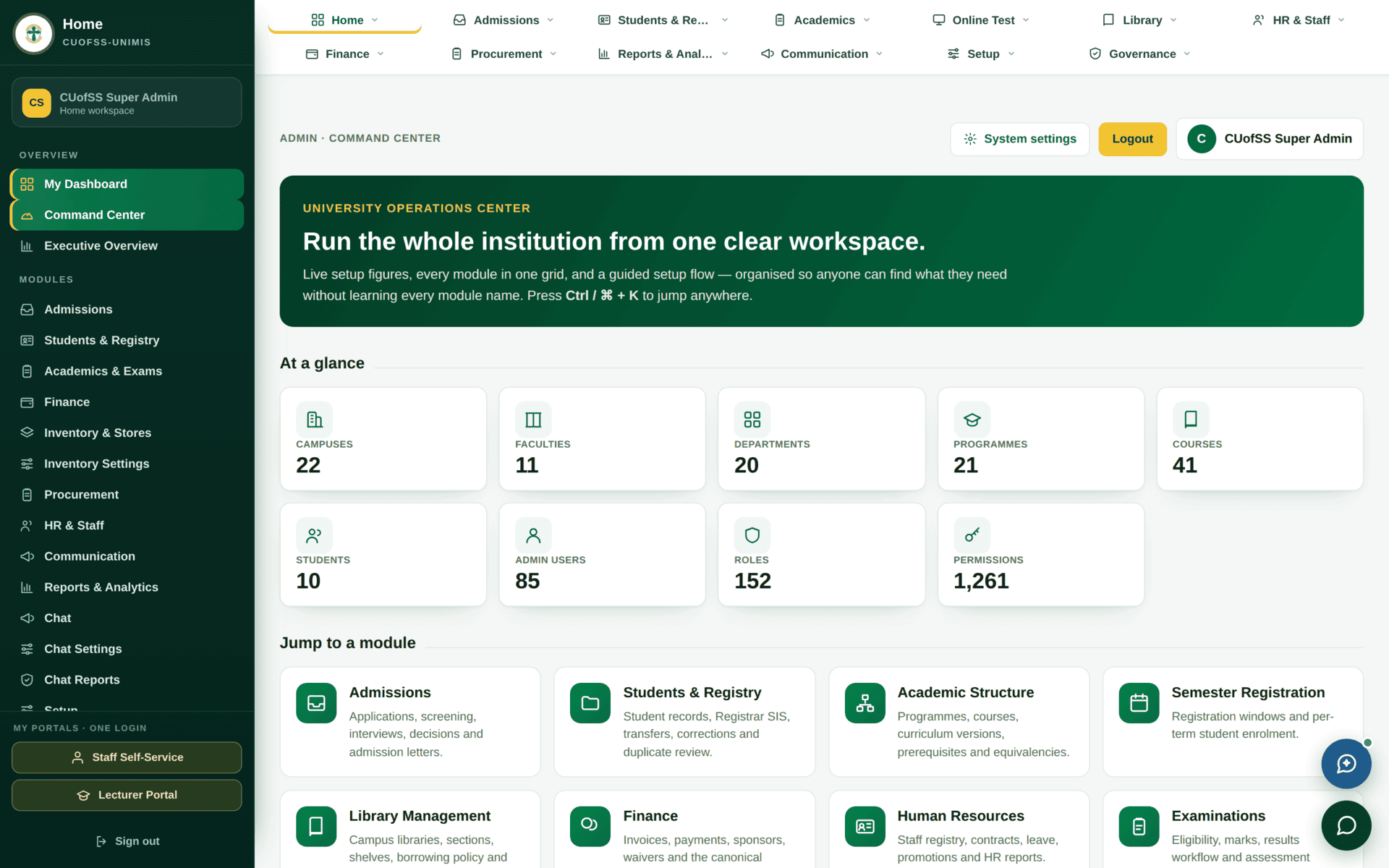
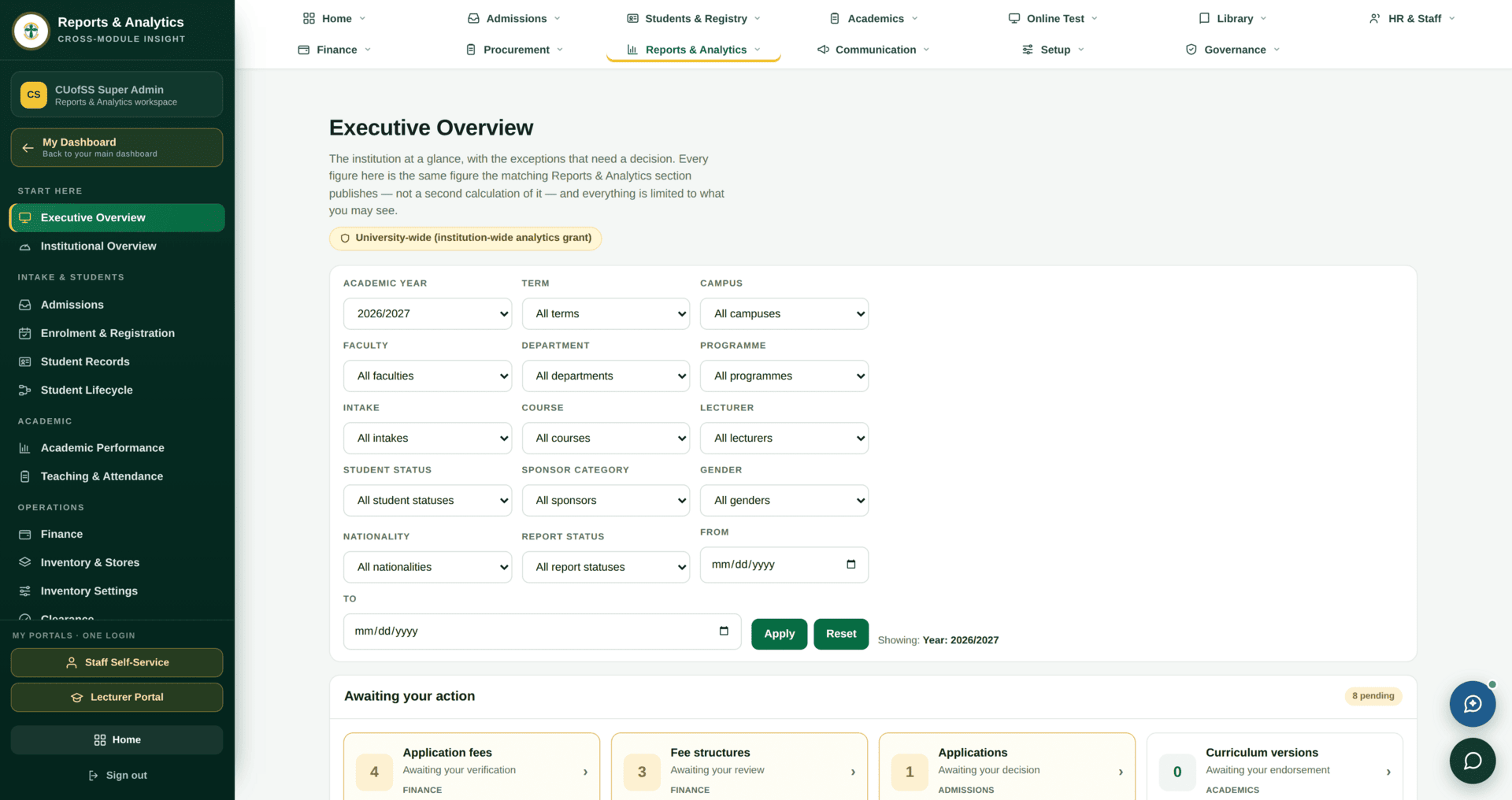
executive.dashboard.view permission. Reached from
Home›Executive Overview.Five words to learn first
| Word | What it means here |
|---|---|
| Role | The job you hold in the system — Registrar, Cashier, Lecturer. Your role decides which menus exist for you at all. |
| Permission | A single named ability, such as graduation.view. Roles are bundles of permissions. When a page refuses you, it is a permission that refused, not a person. |
| Scope | The slice of records your role may see — your campus, your faculty, your department. Two people with the same role can see different lists. |
| Status | Where a record has reached in its process. Statuses are the system's memory; changing one is what “doing the work” means. See Statuses & glossary. |
| Window | A dated period during which something is allowed — an application window, a registration window, an examination period. Outside its window, a screen will politely refuse. |
You will only ever see the parts of the system your role is allowed to touch. If a page described in this manual is not on your menu, that is by design — it belongs to another office. When something blocks you explains what to do about it.