Signing in
Pick the door that matches who you are. Each address has its own front page, but they all open into the same system — and one person who is both a lecturer and a committee member uses a single account for both.
Getting into the right portal with the right identifier the first time.
Everyone
- An account — staff accounts are created by ICT or HR; applicants create their own
Your role dashboard, which is different for every role.
The seven doors
All seven addresses share one sign-in session, because the session cookie is issued for the
whole cuo-ss.sektechsoftsolutions.co.ke domain. Sign in once and you can move between
the portals you are entitled to without signing in again — that is what the
My Portals · One login block at the bottom of every sidebar is for.
| Portal | Address | Who | You type |
|---|---|---|---|
| Administration | cuo-ss.…/admin/login |
All office staff — admissions, registry, finance, library, HR, ICT | Email address or setup username |
| Student | student.cuo-ss.… |
Admitted and continuing students | Student number |
| Lecturer | cuo-ss.…/lecturer |
Anyone who teaches | Email address or staff number |
| Applicant | apply.cuo-ss.… |
Anyone applying to study | Email address you registered with |
| Staff self-service | staff.cuo-ss.… |
Every employee, for their own HR record | Email address |
| Library catalogue | library.cuo-ss.… |
Anyone — the public catalogue needs no account at all | Nothing to search; an account only to reserve |
| Finance | finance.cuo-ss.… |
Finance staff — a shortcut, not a separate system | It redirects you straight to the finance workspace |
finance. and admin. are aliases: they redirect to
/admin/finance and /admin on the main address. Bookmark whichever you
find easier to remember — they land in the same place.
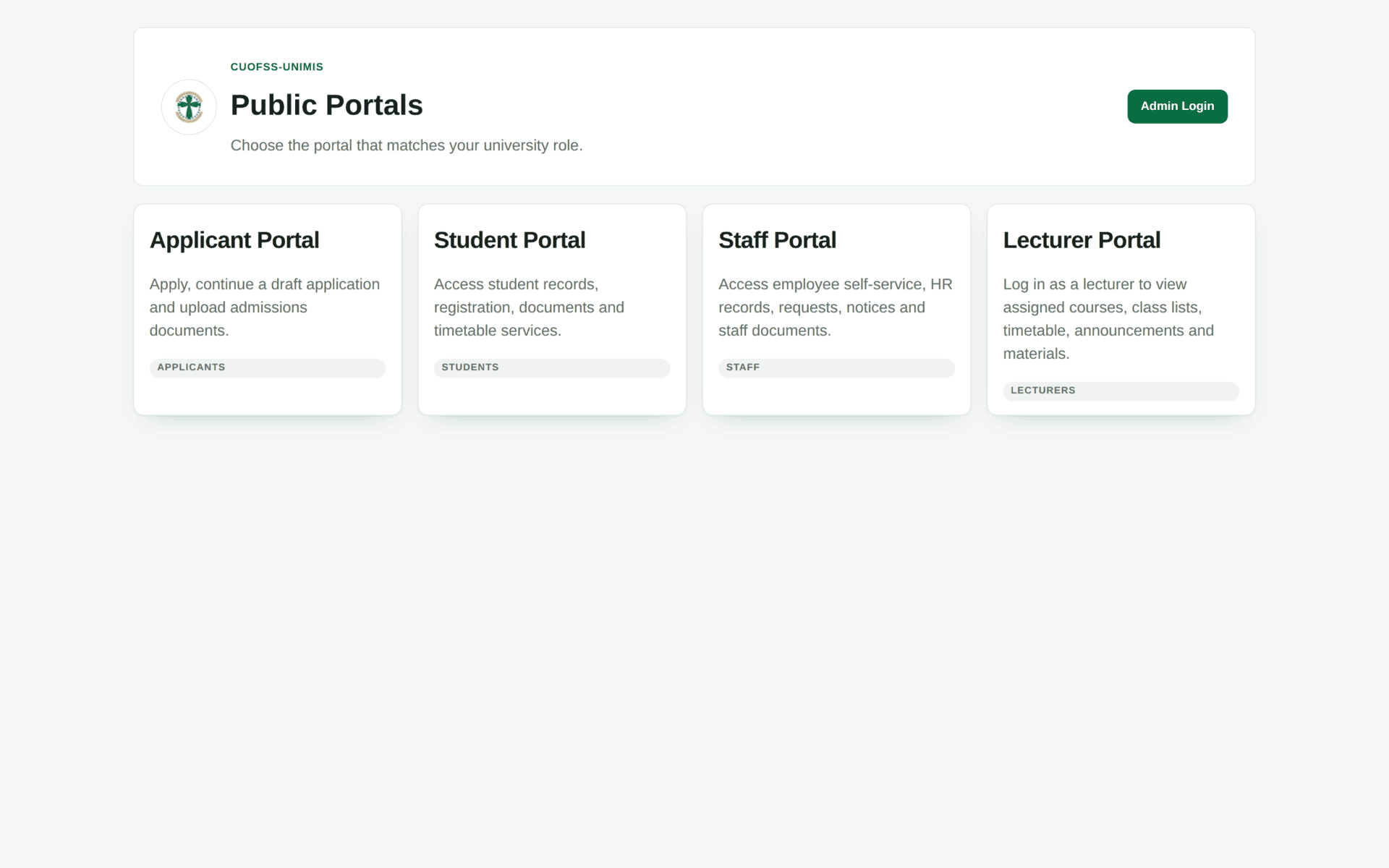
/portals. It offers the four portals a
member of the public might need plus Admin Login. The library catalogue
and the finance shortcut are not on this page — go to their addresses directly.Signing in to the administration portal
-
Go to
https://cuo-ss.sektechsoftsolutions.co.ke/admin/login.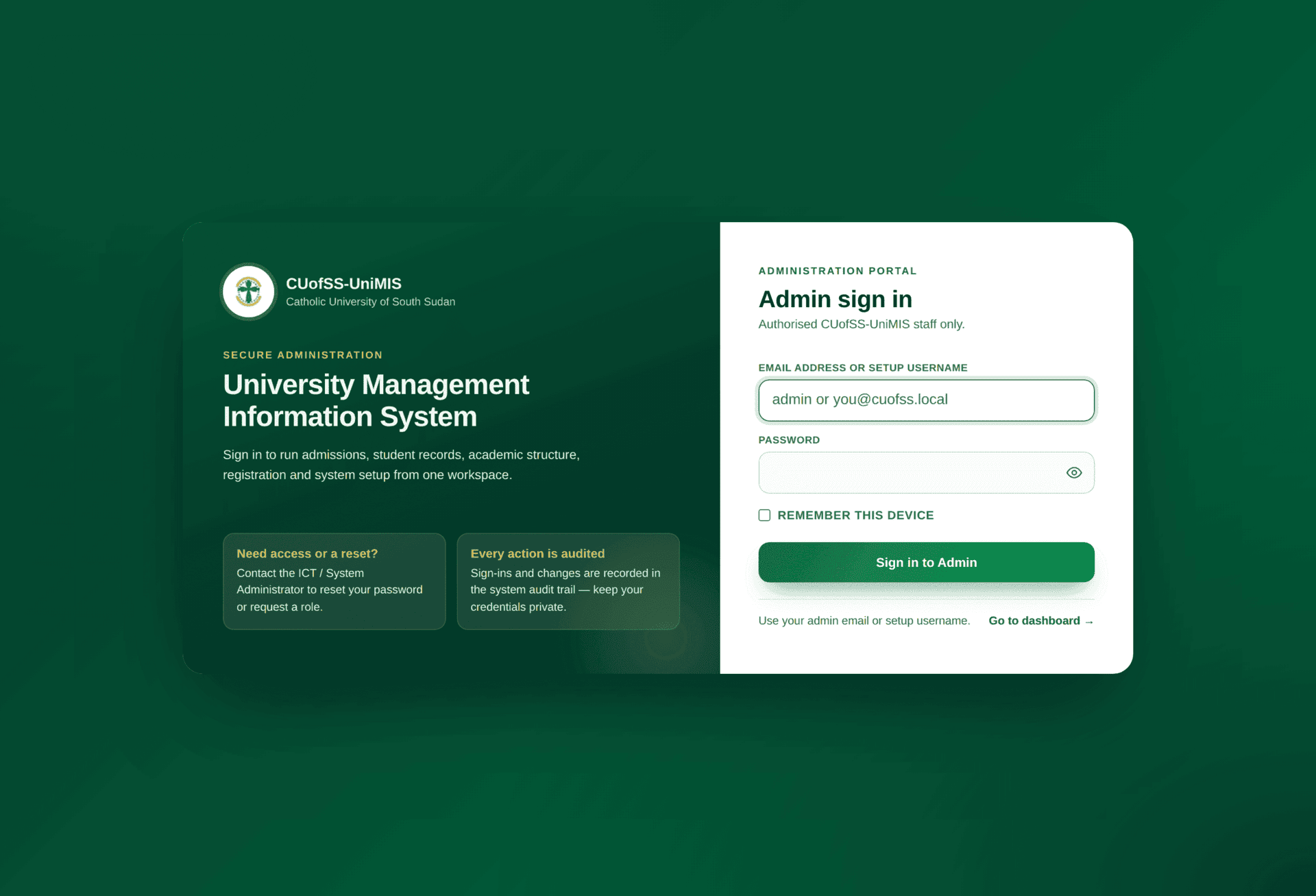
The admin sign-in card. Note the second line of the label: Email address or setup username — the account ICT created for you may have either. - Type your Email address or setup username. This is not case sensitive.
- Type your Password. Use the eye icon at the right of the field to check what you typed before submitting.
- Tick Remember this device only on a computer that is yours alone. Never on a shared office machine or a library terminal.
- Press Sign in to Admin. You land on your role's dashboard, not a general one — see Finding your way around.
The sign-in form carries a hidden trap field for automated attacks. You will never see it and should never fill it. If you use a password manager that aggressively fills every box on a page, it can fill that field and your sign-in will be rejected with a correct password. If that happens, turn autofill off for this page and type the two fields by hand.
The other login forms
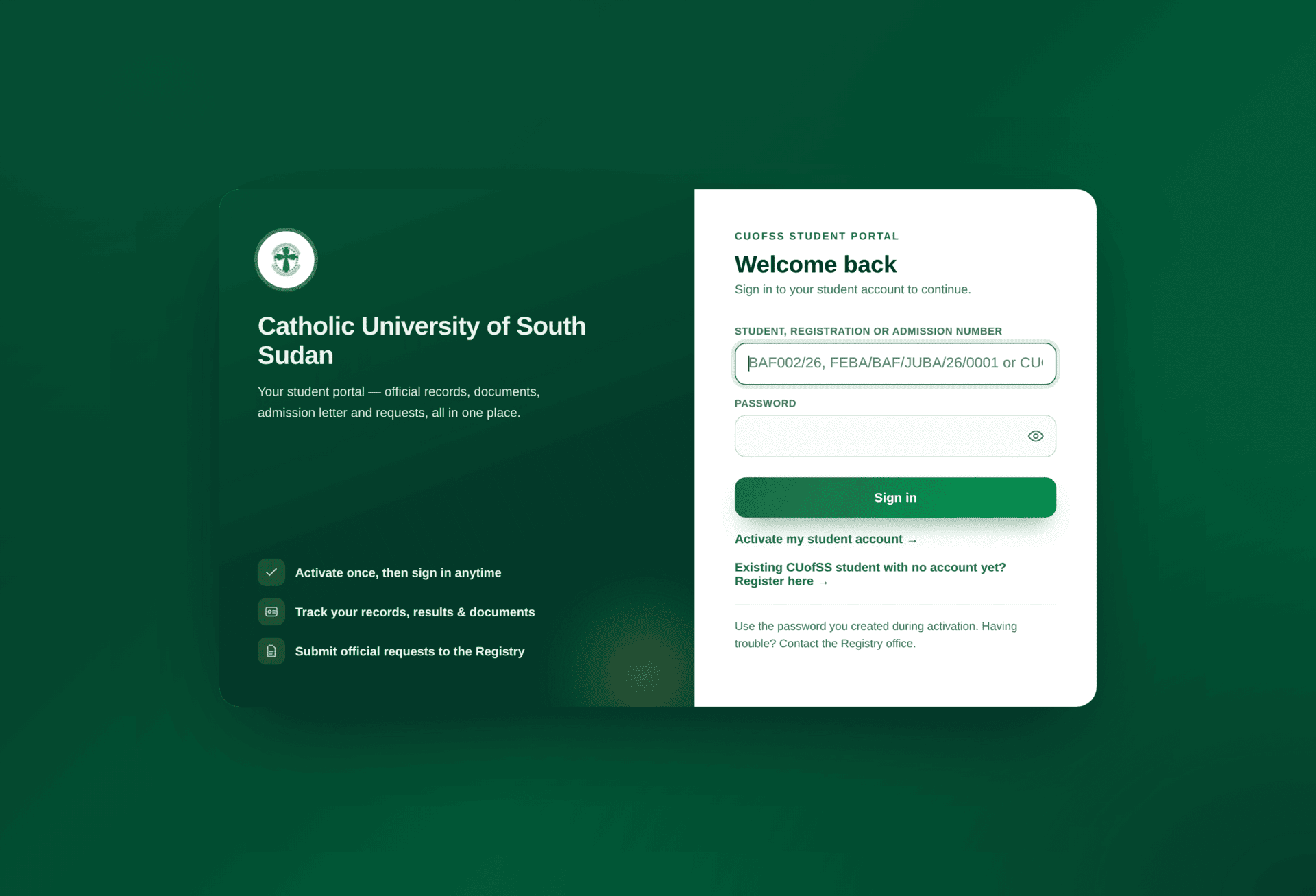
Student portal — student number, not email
This is the single most common mistake students make. The student portal identifies you by the
student number printed on your admission letter and ID card, in the form
CUSS/BIT/JUB/26/00001. Type it exactly, slashes included.
Lecturer portal — email or staff number
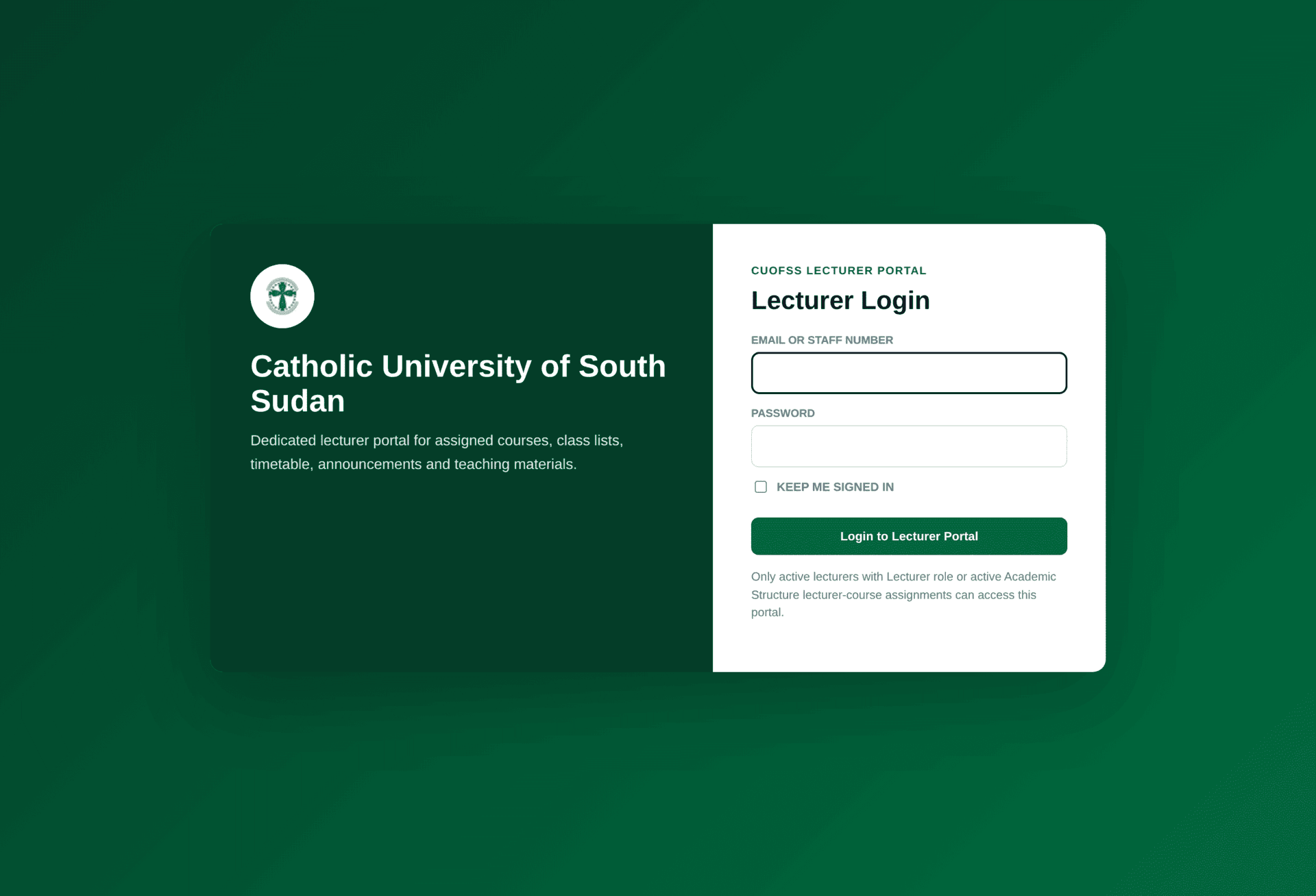
The lecturer portal accepts your email address, the part of it before the @, or your
staff number. It then checks something extra: that you are academic staff, or hold a role whose name
contains “lecturer”, or actually have courses assigned to you. If none of those is true
it refuses, even with the right password.
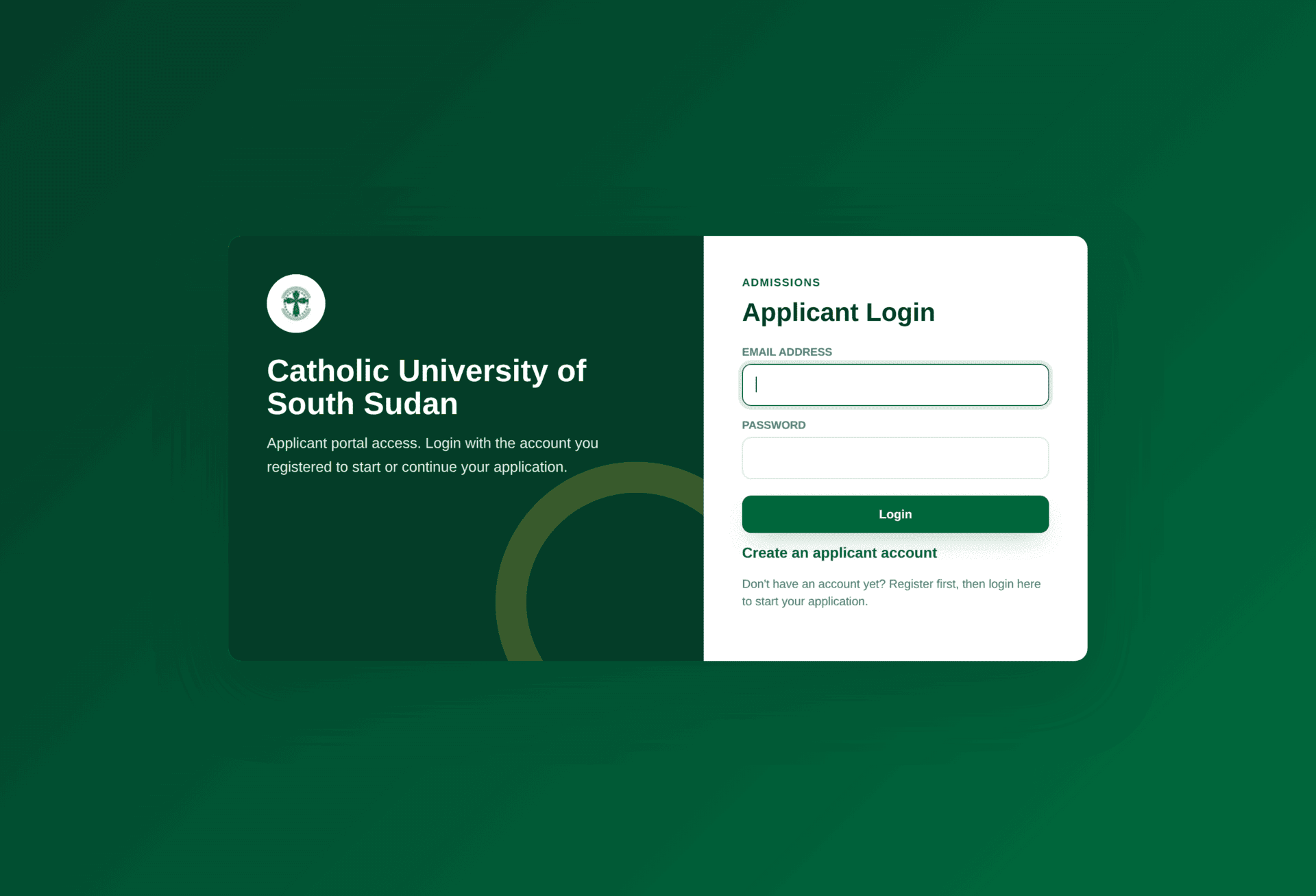
Applicant portal — you create your own account
Applicants are not created by the university. You register yourself with an email address you can actually open, because the system emails a verification link to it. See Applying for admission.
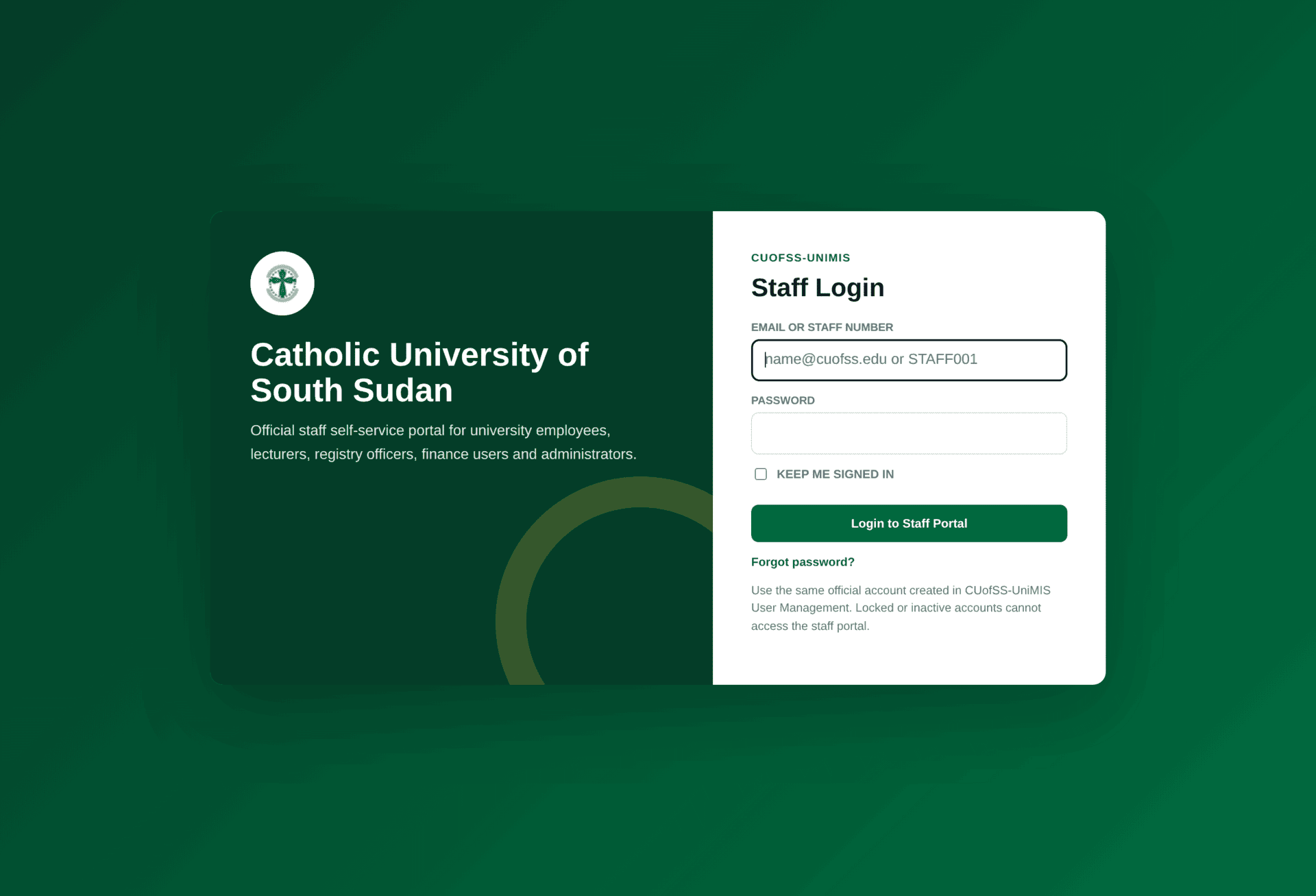
Staff self-service — your own HR record
Every employee has this, whatever else they do. It carries your profile, your leave, your documents and your payslips. It is not the same as the administration portal, and holding one does not imply the other.
If it refuses you
A refused sign-in is almost never a forgotten password. Work down this table before asking for a reset.
| What you see | What it usually means | What to do |
|---|---|---|
| The page simply reloads with the fields empty | The form was rejected as automated — most often a password manager filling a hidden field, or a page left open so long the form expired | Reload the page, then type both fields by hand without autofill |
| “Lecturer email/staff number and password do not match, or the lecturer account is not active” | Three possible causes in one sentence: wrong credentials, an account marked inactive, or an account with no teaching entitlement | Try the administration portal with the same credentials. If that works, your password is fine and the problem is entitlement — ask HR to confirm your staff category, or ask the HOD to assign you a course |
| Sign-in succeeds but you bounce straight back to the login page | You are authenticated, but the landing page your role is sent to is one you may not open | Type a page you know you may use — for a cashier, /admin/finance/payments-desk — and report the bounce to ICT |
| Account is not active | The account exists but has been deactivated, usually after separation or during onboarding | HR or ICT reactivates it; a password reset will not help |
| Student number refused | Either the portal has not been activated for that student record, or the number is being typed without its slashes | Registry activates the portal record — see Student records & registry |
There is no self-service password reset for the student portal. Students who lose a password must ask Registry or ICT. Staff should contact the ICT / System Administrator, as the sign-in page says. Never share an account: every action is written to the audit trail against the account that performed it, and a shared account makes that record meaningless.