Roles and what they unlock
Nobody sees the whole system. What appears on your menu is decided by your role, what you may do there is decided by individual permissions, and which records you may see is decided by scope. All three have to line up before a screen will open.
Understanding why a screen is missing or refuses you, and describing your access accurately when you ask for more.
EveryoneICT / System Administrator
- A signed-in account
You can name the permission you are missing instead of saying "it doesn't work".
Three layers, all of which must agree
| Layer | Question it answers | What failure looks like |
|---|---|---|
| Role | What job do you hold? Registrar, Cashier, Lecturer, HOD. | The module is not on your bar at all. Nothing to click. |
| Permission | May you do this one specific thing? graduation.view, finance.payments.manage. |
The menu item is there but the page returns 403 — not authorised, or a button is missing from a page you can otherwise read. |
| Scope | Which records? Your campus, your faculty, your department. | The page opens and works perfectly — but the list is empty, or shorter than you expected. |
An empty list is the hardest of the three to diagnose, because nothing looks broken. If a screen opens but shows nothing, suspect scope before you suspect data: a Dean sees only their own faculty, an HOD only their department, and a campus-scoped officer only their campus. Ask a colleague with wider scope to look at the same screen before reporting missing records.
The same system, three different roles
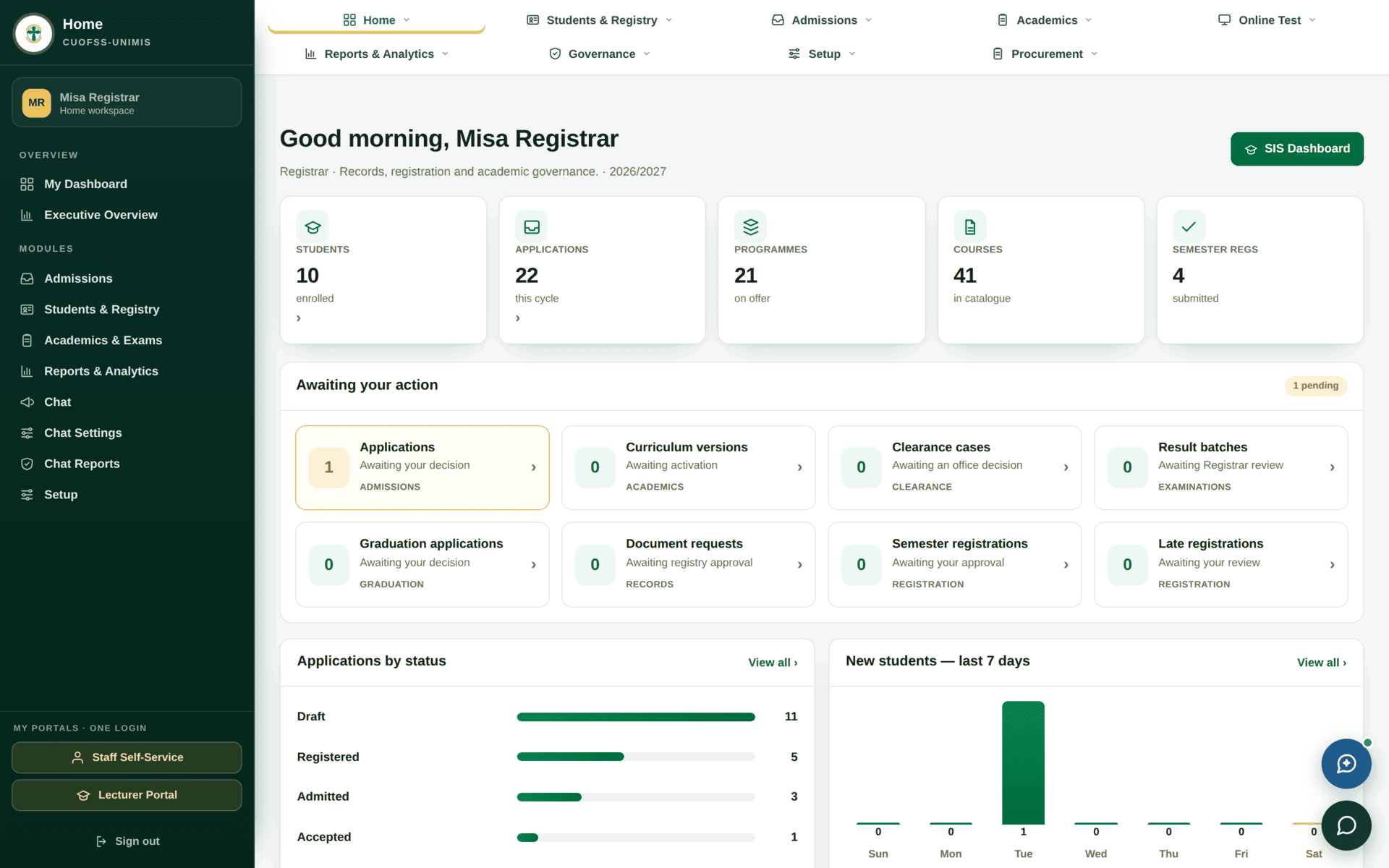
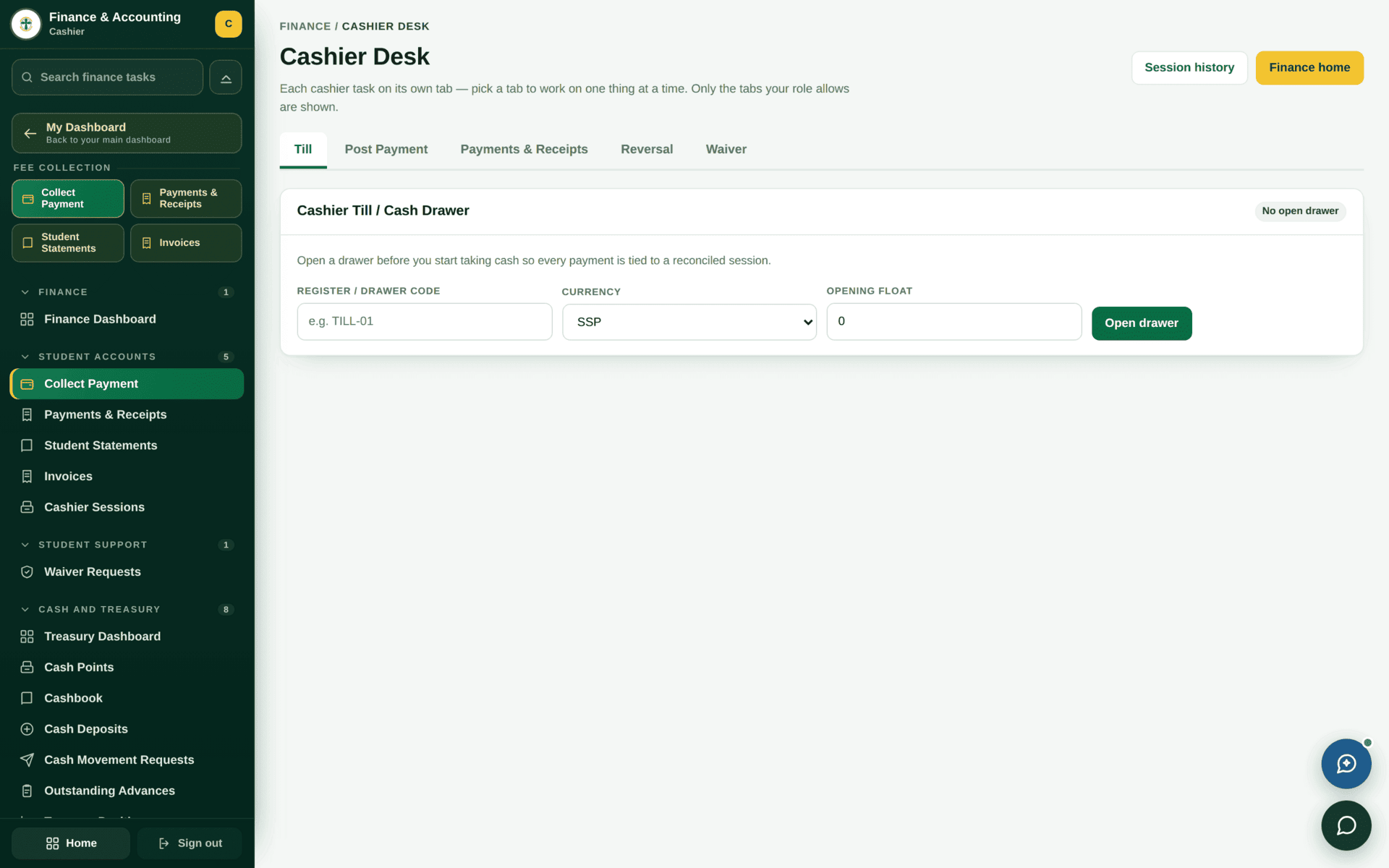
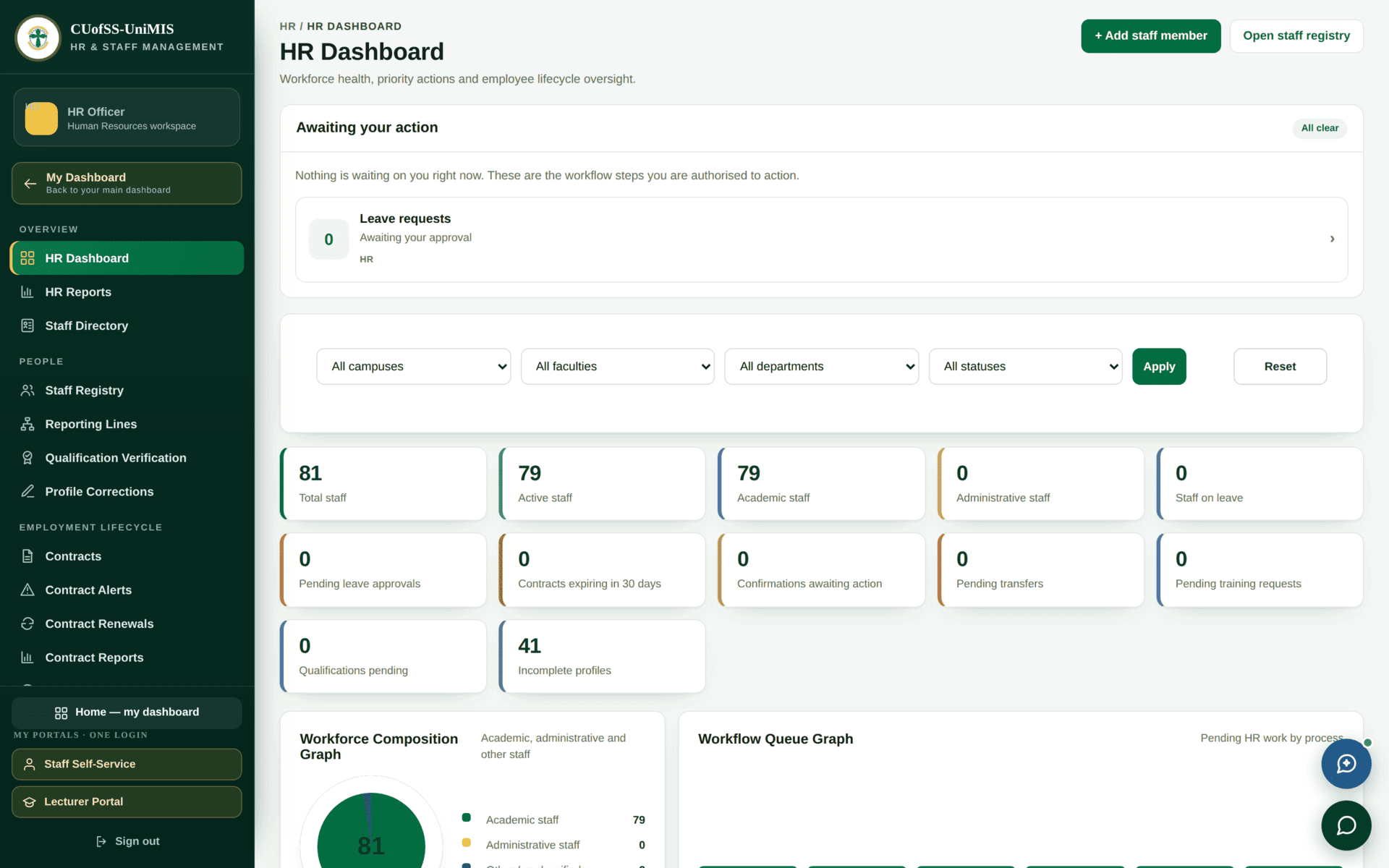
These three screenshots were taken minutes apart on the same live system. The differences are entirely the result of the roles held.
The role catalogue
The system ships with a large catalogue of roles — 152 of them, drawing on 1,261 individual permissions — because it covers finance, procurement, inventory, payroll, grants and audit as well as the academic cycle. Most of that catalogue is not in use at any one time: at the time of writing, 27 roles actually have people in them and the rest are defined but unstaffed, waiting for the phase of the roll-out that needs them.
Two practical consequences:
- A role existing is not the same as a role being staffed. If a workflow waits for, say, the Internal Auditor to sign and nobody holds that role, the record simply stops there. When something has been “pending approval” for weeks, ask ICT whether the next role in the chain has anyone in it.
- Do not invent roles. Almost any job you can describe already has a role defined. Ask ICT to attach the existing one rather than create a near-duplicate — duplicates are how two people end up with subtly different access and nobody can explain why.
The roles in daily use
| Role | Its part of the system | Scale |
|---|---|---|
| Super Admin | Everything. Used for setup and rescue, not for daily work | 890 permissions |
| Finance Manager | The whole finance and accounting module | 290 |
| Registrar | Records, registration, curriculum, graduation, clearance | 233 |
| Bursar | Student billing, collections, treasury | 223 |
| DVC-Admin & Finance | Oversight across finance, HR and procurement | 218 |
| ICT Admin | Users, roles, integrations, system settings | 179 |
| Academic Registry Staff | Day-to-day records and registration work | 148 |
| HOD | Their department: teaching, marks, curriculum, clearance | 133 |
| Dean | Their faculty: endorsements, leave, timetable review, graduation | 128 |
| Inventory Manager | Stores, items, issues, counts, valuation | 108 |
| DVC-Academic Affairs | Academic oversight and approvals | 98 |
| Finance Officer | Invoicing, receipting, reconciliation | 93 |
| Exams Officer | Assessment structures, papers, results workflow | 73 |
| HR Manager | Staff lifecycle, contracts, leave, discipline | 73 |
| Campus Director | Everything, scoped to one campus | 72 |
| VC | Institution-wide oversight and final approvals | 69 |
| Lecturer | Own courses, class lists, attendance, marks | 45 |
| HR Officer | Staff records and HR transactions | 42 |
| Dean of Students | Student welfare, discipline, clearance | 40 |
| Librarian | Catalogue, circulation, fines, library clearance | 38 |
| QA Officer | Quality assurance review across academics | 37 |
| Cashier | The till: collect, receipt, reverse, close the drawer | 34 |
| Senate / Academic Board | Approving results, curriculum and graduation lists | 34 / 25 |
| Admissions Officer | The applications workspace and publication batches | 25 |
| Student | Their own portal | 13 |
Permissions are named module.thing.verb — finance.payments.manage,
exams.question_bank.moderate, graduation.view. When a page refuses you,
the name in the message is the exact thing to quote in your request to ICT. “I need
semester-registration.retake-authorize” is actionable; “I can't do
retakes” is not.
Finding out what you hold
- Read your module bar. It is generated from your permissions, so it is an accurate list of the modules you can reach. Nothing hidden, nothing extra.
- Read your sidebar in each module. Same principle one level down: the tasks listed are the tasks you may open.
- Read the chip at the top of the sidebar. It names the workspace your role landed you in — a Cashier lands on the till, a Registrar on the registry dashboard.
- Ask ICT for the exact list. Governance → Users shows any account's roles, and Roles & Permissions shows exactly what each role carries. See Governance & access.
Asking for access, the way that gets it granted quickly
A registry officer needs to authorise a retake but the menu item is missing.
| Check first | Is Students & Registry on the module bar? Yes — so the role is right and only a permission is missing. |
| Check second | Is Retake Authorizations in the sidebar? No — so it is that item's permission. |
| Name it | This chapter and Semester registration both name it: semester-registration.retake-authorize |
| The request | “Please add semester-registration.retake-authorize to my account (Academic Registry Staff). I need it to clear retake requests for the September intake.” |
| Why this works | ICT can act on it without a conversation, and the audit log records a specific, justified grant rather than a broad one. |
Super Admin bypasses every check in the system, which means it also bypasses the ones that protect you — scope limits, approval chains and the separation between offices. It exists for setup and rescue. Asking for the specific permission you need is faster to grant, safer, and leaves a record that explains itself later.