Communication
The communication module composes, queues and records every message the university sends. Before you use it for anything that matters, read the badge in the top right of its dashboard: it tells you whether sending is switched on.
Sending official email and SMS, and proving what was delivered.
ICT Admin with email permissionsCommunication officersAdmissions and Registry for bulk sends
- SMTP configured and validated
- Sender identities
- Approved templates
Delivered messages with a log, or a failure you can see and retry.
First: is sending on?
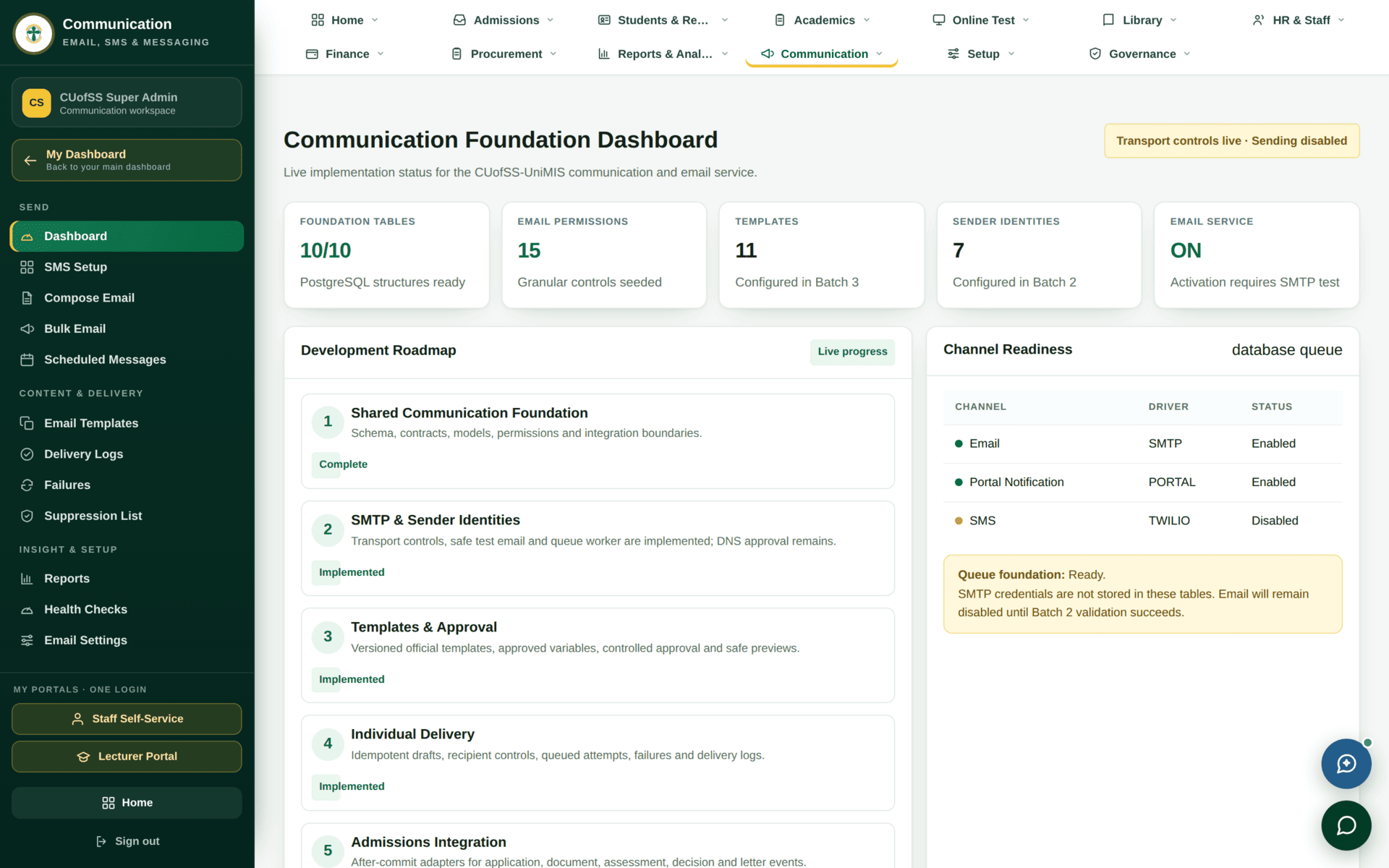
At the time of writing the badge reads “Transport controls live · Sending disabled”, and the queue note says plainly: “SMTP credentials are not stored in these tables. Email will remain disabled until Batch 2 validation succeeds.”
You can compose, template and queue. Messages will not leave. Do not rely on this module to notify applicants or students of anything time-critical until that badge changes — and do not assume a queued message was delivered.
| Channel | Driver | Status | Means |
|---|---|---|---|
| SMTP | Enabled | The channel is configured; the service still awaits validation | |
| Portal notification | PORTAL | Enabled | In-system notices work — the reliable channel today |
| SMS | TWILIO | Disabled | Not in service |
Portal notifications are enabled. If you need to reach students or staff now, a notice that appears in their portal will arrive; an email may not. Plan around that rather than discovering it after an admission list is published.
Composing and sending
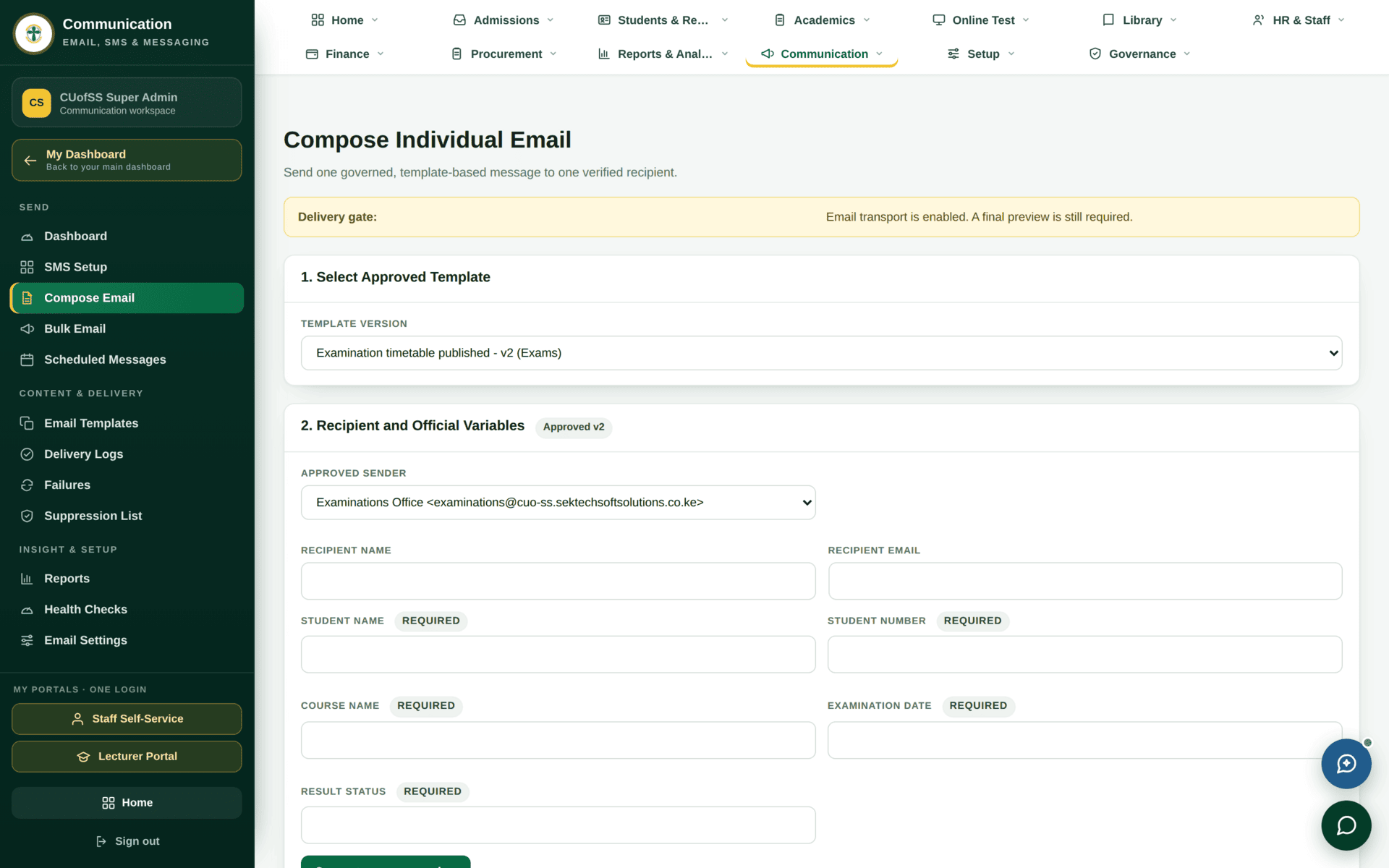
email.compose.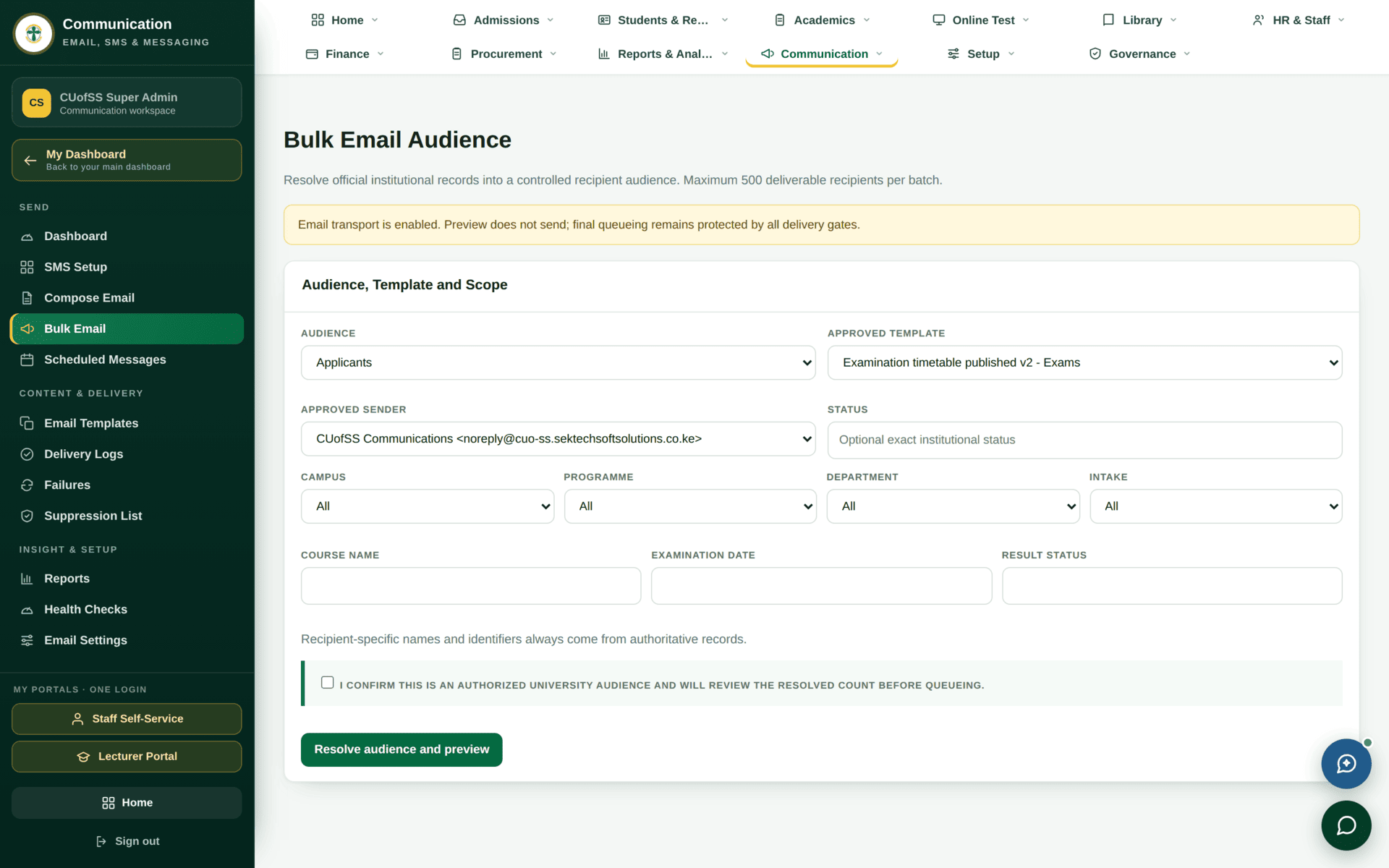
email.send_bulk, deliberately separate from composing a single message.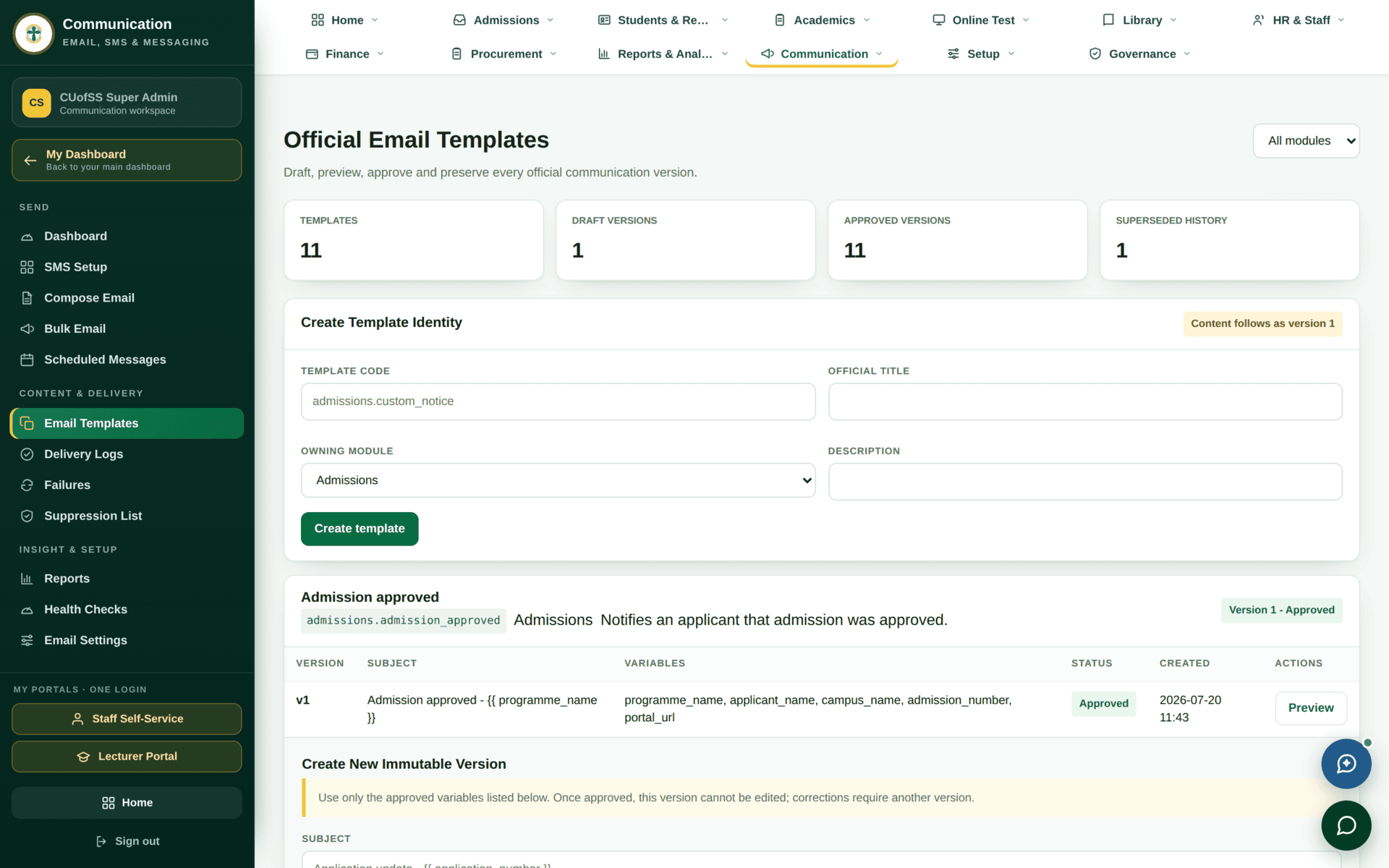
Chasing 11 applicants who have not finished their form
| 0. Check | The dashboard badge. If sending is disabled, use a portal notice instead — or accept that this is a queued draft, not a send |
| 1. Audience | Admissions → the Incomplete Applications tile. That is your list, already filtered |
| 2. Template | Use an approved template rather than free text. It carries the right sender identity and the approved variables |
| 3. Preview | Templates support a safe preview. Read it once as an applicant would |
| 4. Send | Bulk Email |
| 5. Prove it | Delivery Logs — attempted, delivered, failed. This is the record, not your sent folder |
| 6. Failures | Failures — retry the transient, investigate the rest. A bounced address is a data problem, not a mail problem |
| 7. Suppressions | Anyone who has unsubscribed or hard-bounced is on the Suppression List and is skipped. That is correct, not a fault |
Delivery, failures and health
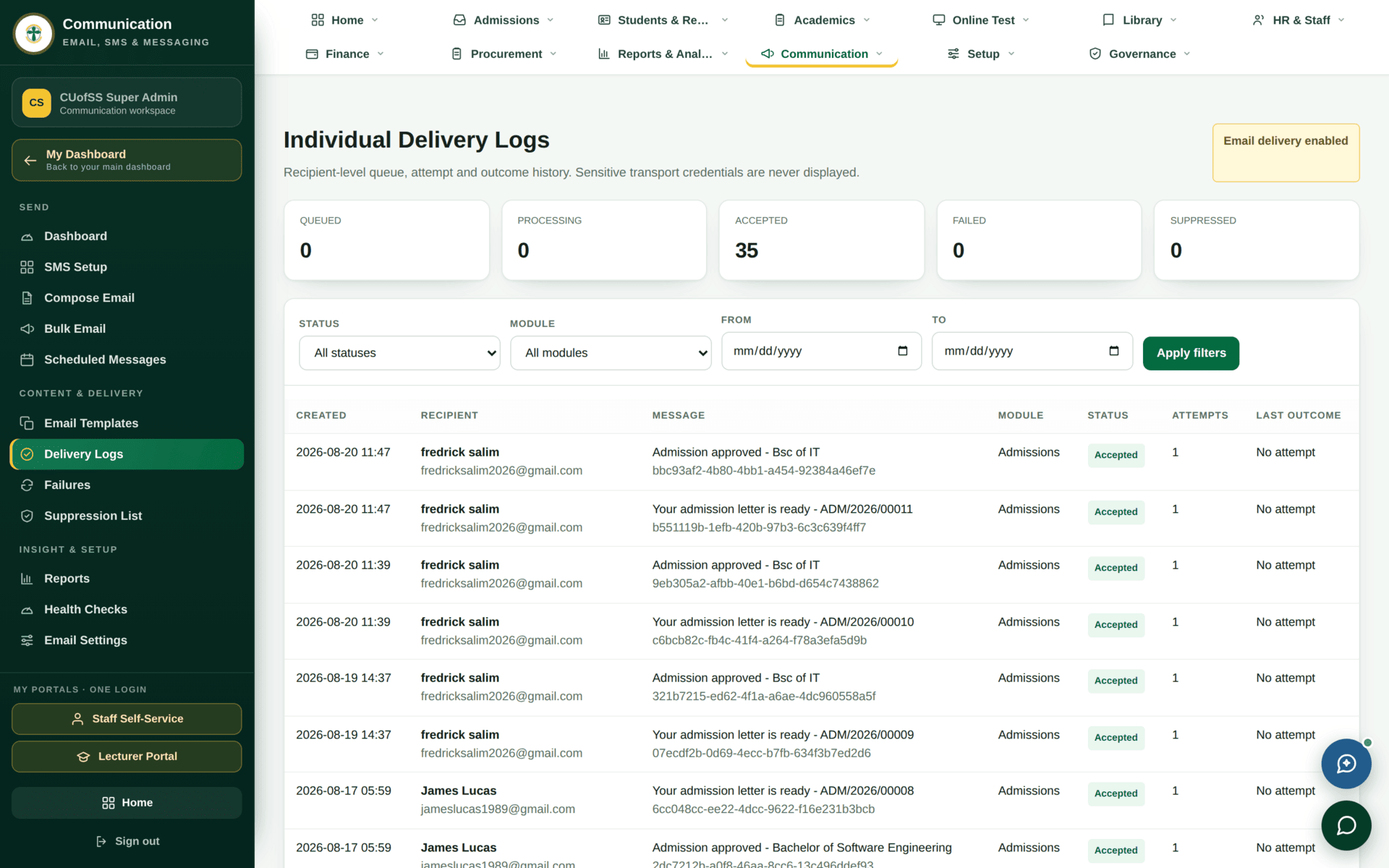
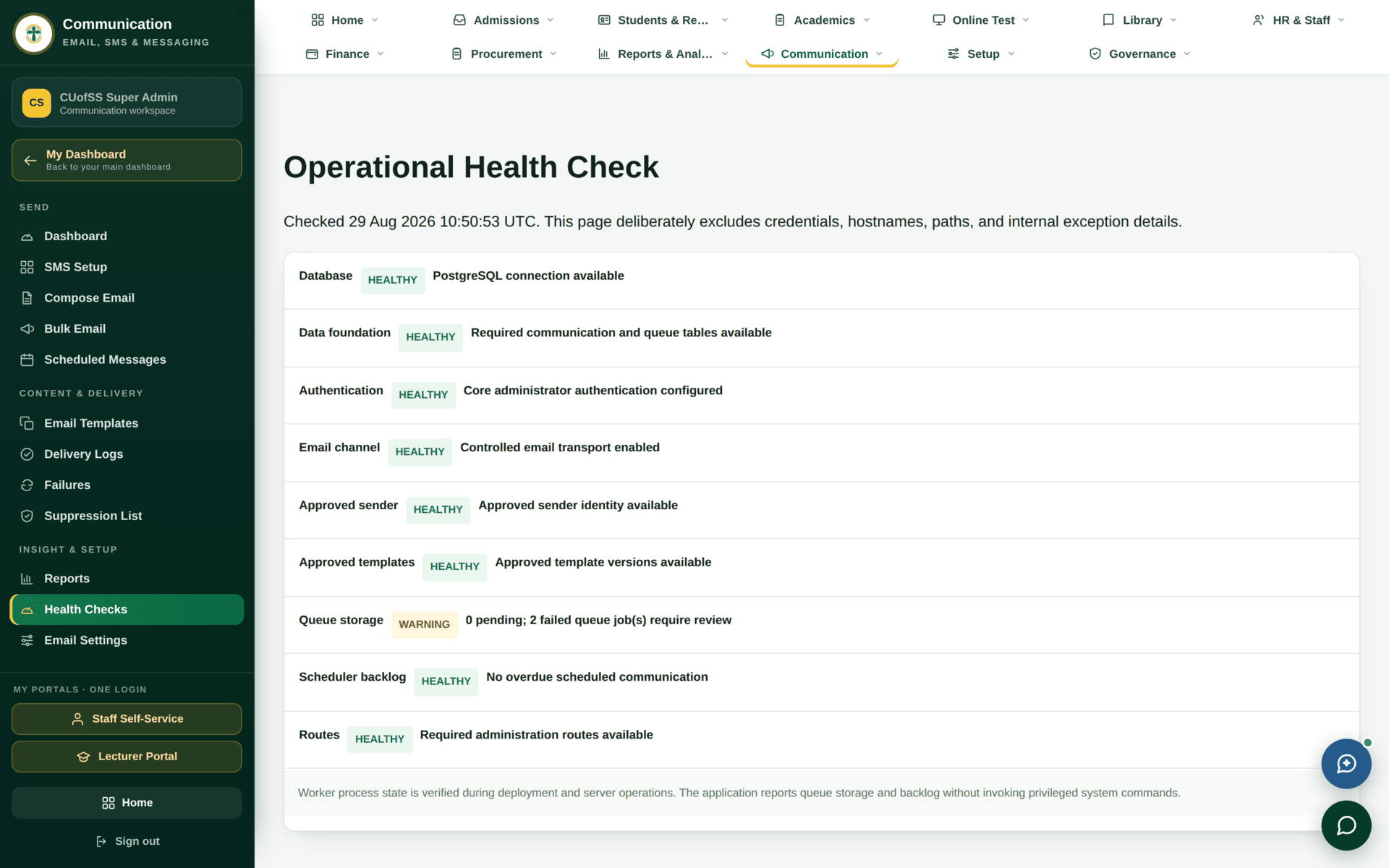
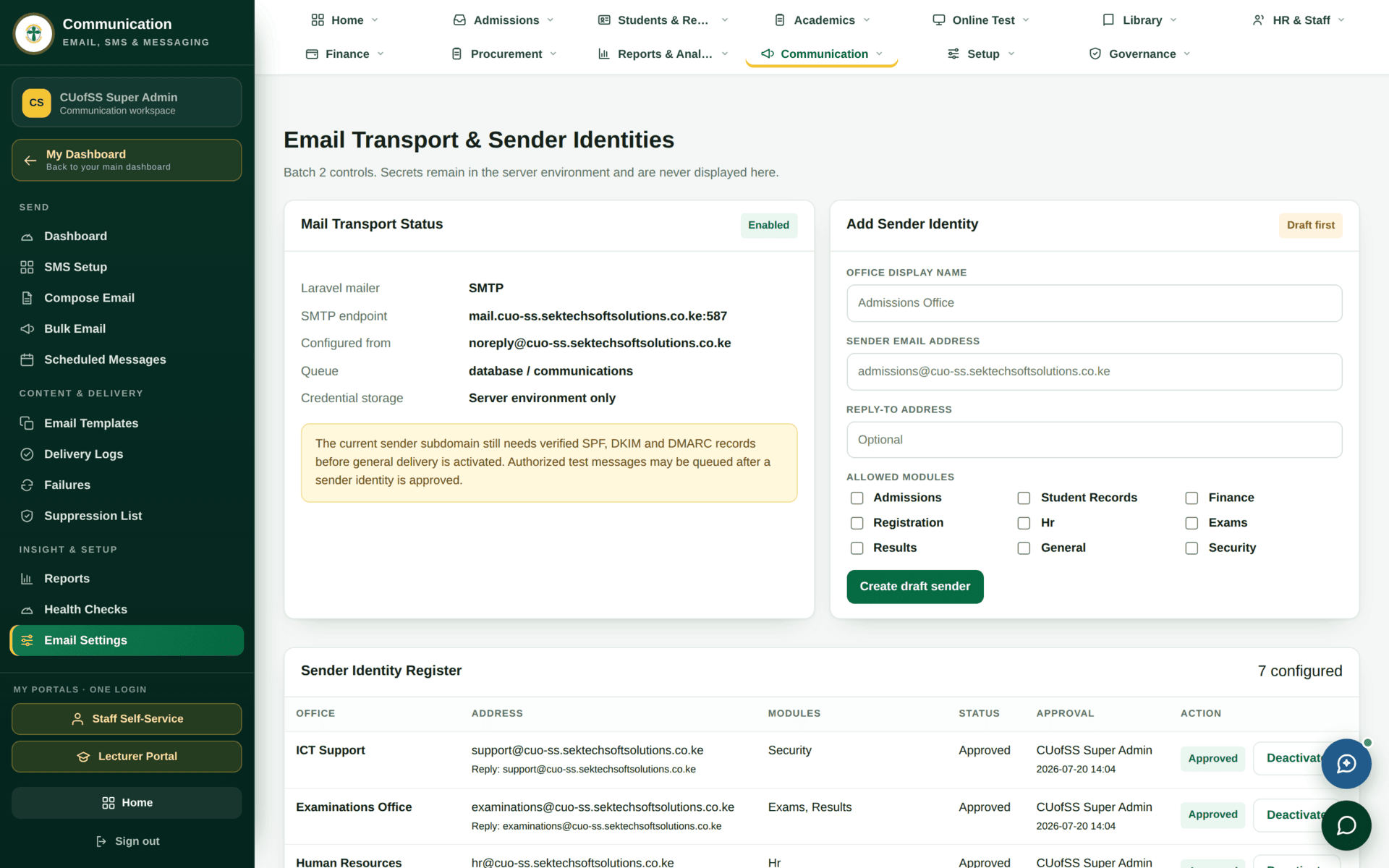
email.manage_settings.Communication permissions are unusually granular
Fifteen separate email permissions exist, and they are not bundled. It is entirely normal to hold one and not another — an ICT administrator with wide system access may hold none of them at all, because sending on the university's behalf is a different responsibility from running the system.
| Permission | Lets you |
|---|---|
email.compose | Write and send an individual message |
email.send_bulk | Send to an audience |
email.schedule | Queue a message for later |
email.manage_templates | Create and version templates |
email.view_logs | Read delivery logs |
email.retry_failures | Retry failed sends |
email.manage_suppressions | Manage the suppression list |
email.export_reports | Export communication reports |
email.manage_settings | Change transport and sender identities |
If a message does not arrive
| Symptom | Cause | Fix |
|---|---|---|
| Nothing at all is being delivered | Sending is disabled at the service level | The dashboard badge. Nothing you do in Compose will change it |
| SMS never sends | The SMS channel is disabled | Channel Readiness |
| One recipient never receives anything | They are on the suppression list | Suppression List — check before assuming a bug |
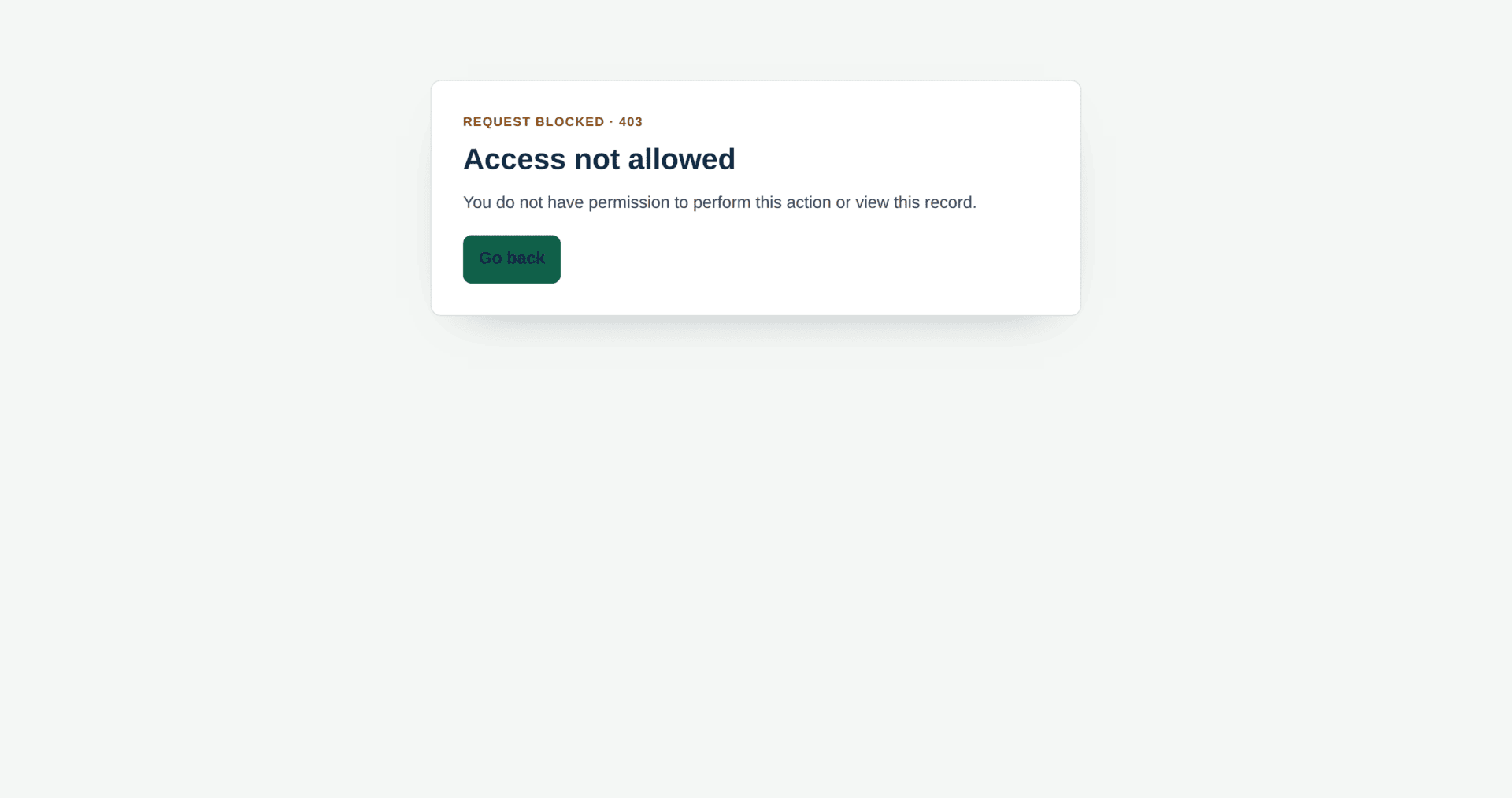
| The whole module refuses | You hold no email permission | Request the specific one you need |
| A template will not send | It is not approved | Templates — approval is a step |
| Sent but the student says nothing arrived | Check the log before believing either party | Delivery Logs |