Cashier desk & treasury
Every cash transaction belongs to a session. You open a drawer before you take money and you close it against a count at the end — so that at any moment the system can say who took what, and where it is.
Collecting money from students and accounting for it at the end of the day.
CashierSenior CashierBursarFinance Officer
- A register or drawer code
- An invoice on the student's account
- A payment method configured
A receipt for the student, and a reconciled session for the Bursar.
The Cashier Desk
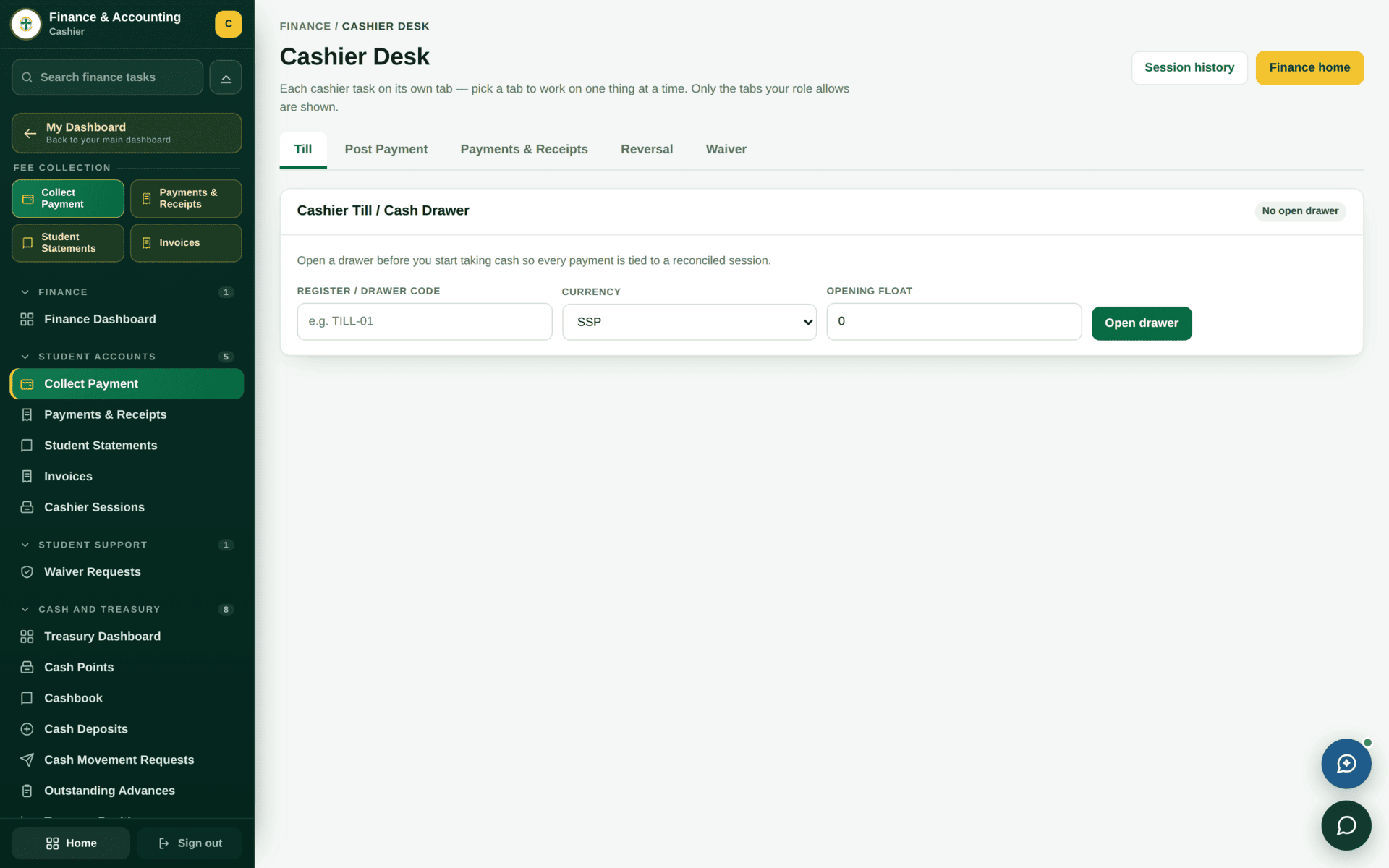
| Tab | What it does |
|---|---|
| Till | Open and close your cash drawer |
| Post Payment | Record a payment against a student's invoice |
| Payments & Receipts | What you have taken, and reprint a receipt |
| Reversal | Request the reversal of a payment posted in error |
| Waiver | The waiver view available to your role |
The screen says so: “Each cashier task on its own tab — pick a tab to work on one thing at a time. Only the tabs your role allows are shown.” A Senior Cashier or the Bursar sees more here than a Cashier does. That is permissions working inside a screen.
Taking a payment
A student pays SSP 220,000 in cash
| 1. Open the drawer | Till tab. Register / drawer code TILL-01, currency SSP, opening float 0 → Open drawer. The badge changes from No open drawer |
| 2. Find the student | Post Payment tab → search by student number CUSS/BIT/JUB/26/00001. Confirm the name matches the person in front of you |
| 3. Pick the invoice | Apply against the specific invoice, not a general credit — an unapplied payment shows as a credit balance and confuses clearance later |
| 4. Record it | Method Cash, amount 220,000.00, currency SSP. If it was a bank deposit, record the bank and the slip reference too — attribution matters at reconciliation |
| 5. Receipt | Issue and print it. The student leaves with paper; the account updates immediately |
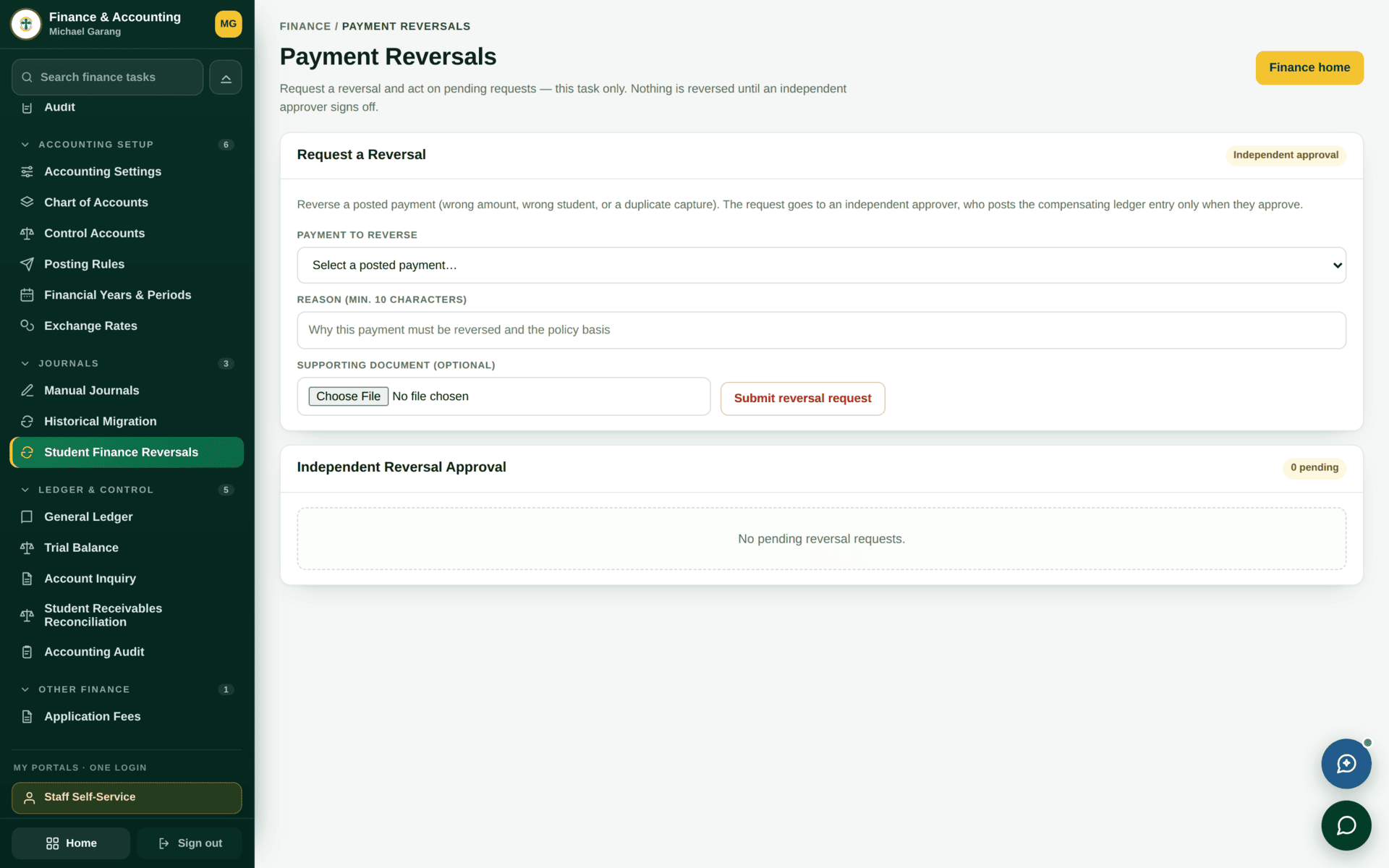
| 6. Mistake? | Do not post an opposite payment. Use the Reversal tab — a reversal is a request that is approved, and the audit trail keeps both entries |
| 7. End of day | Close the drawer with a physical count. A difference is recorded, not hidden |
| 8. Sign-off | The session goes to the Bursar as Cashier sessions — awaiting your sign-off |
Two wrong entries do not make a right balance — they make a reconciliation that nobody can explain in six months. Reversals exist for exactly this, they are approved rather than self-serve, and both the original and the reversal stay on the record.
Sessions and reconciliation
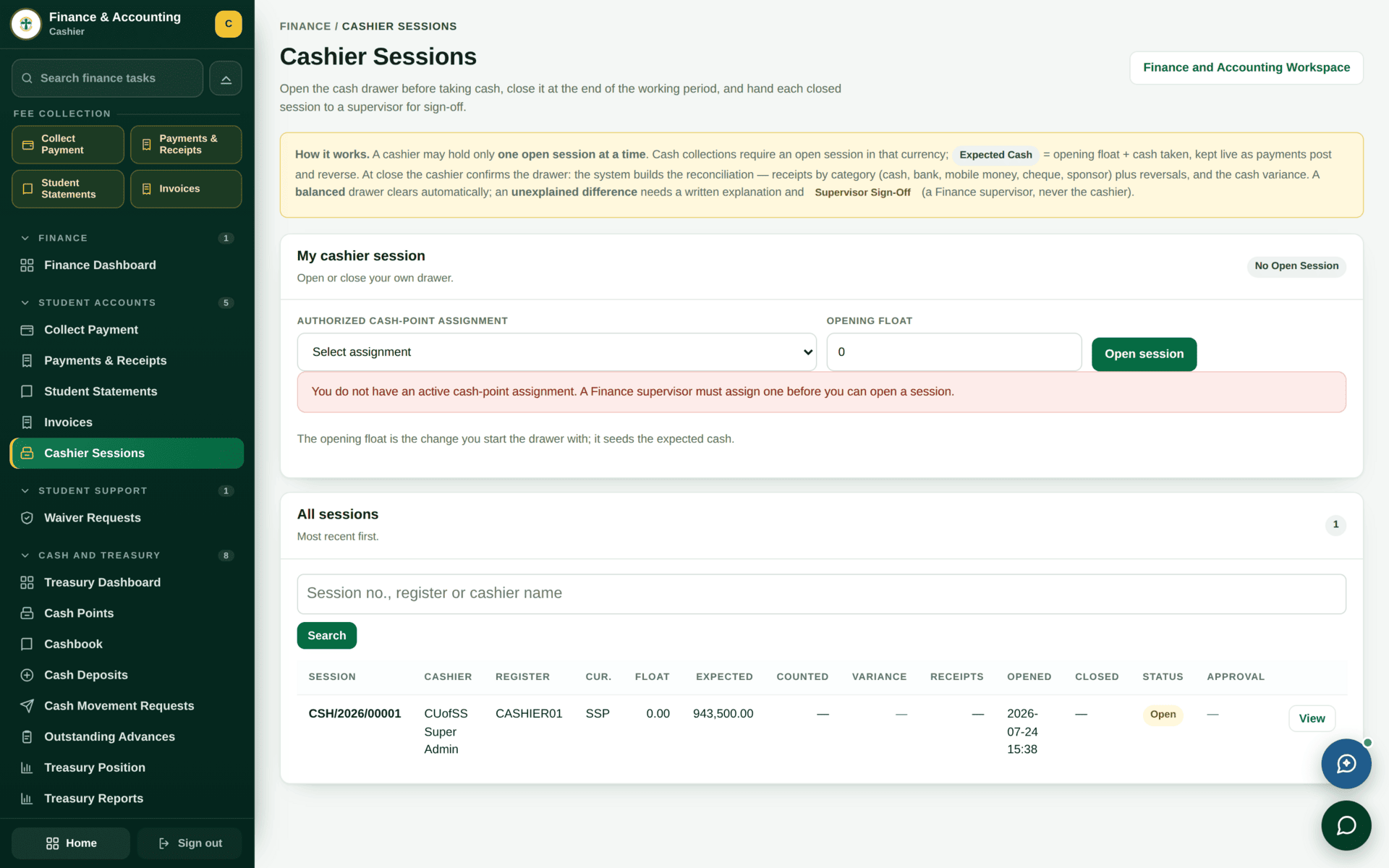
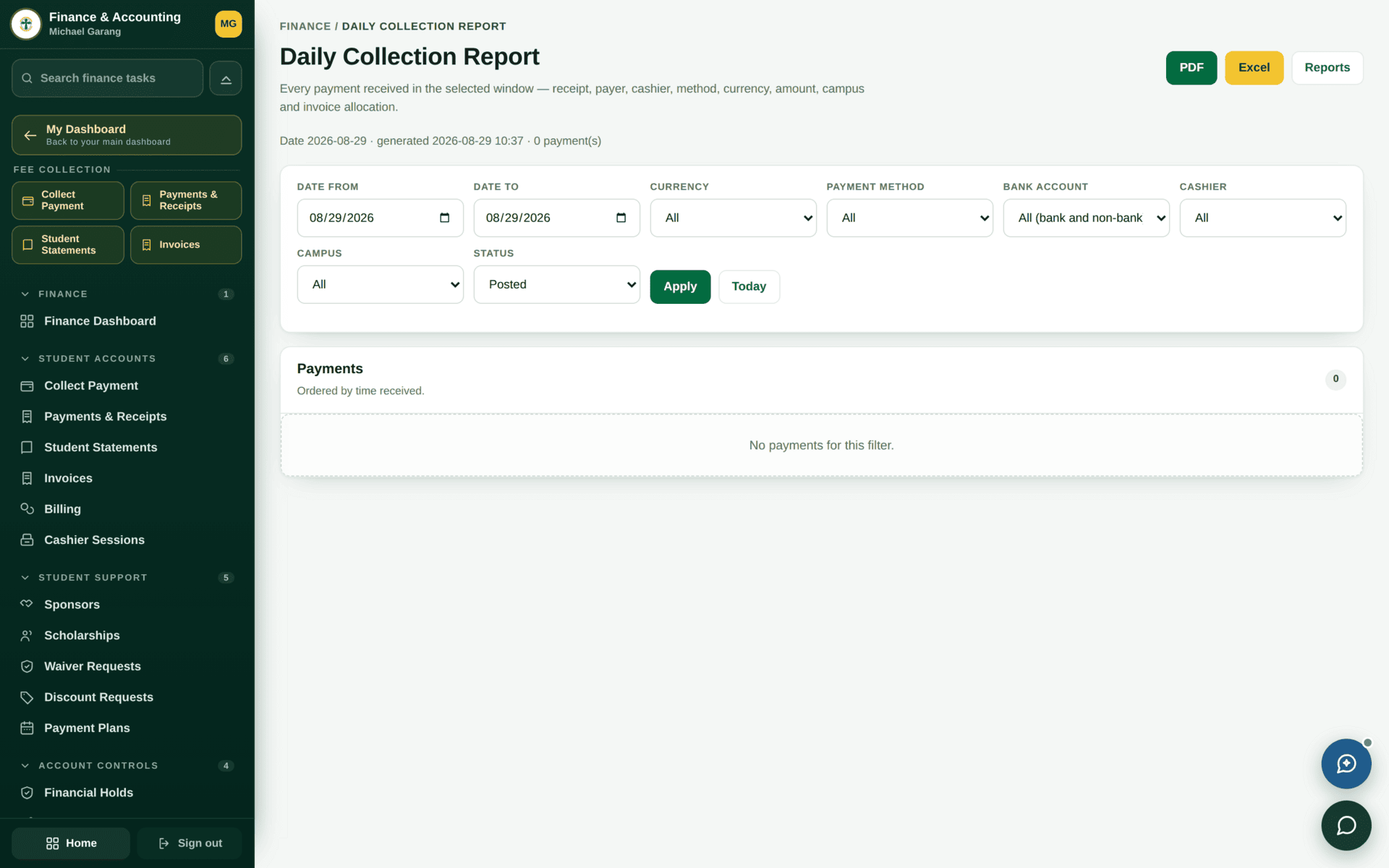
The finance dashboard has a tile for them. A session left open overnight keeps taking payments into yesterday's count, so its variance becomes meaningless. Close every drawer at the end of every day, even a quiet one.
More than one currency
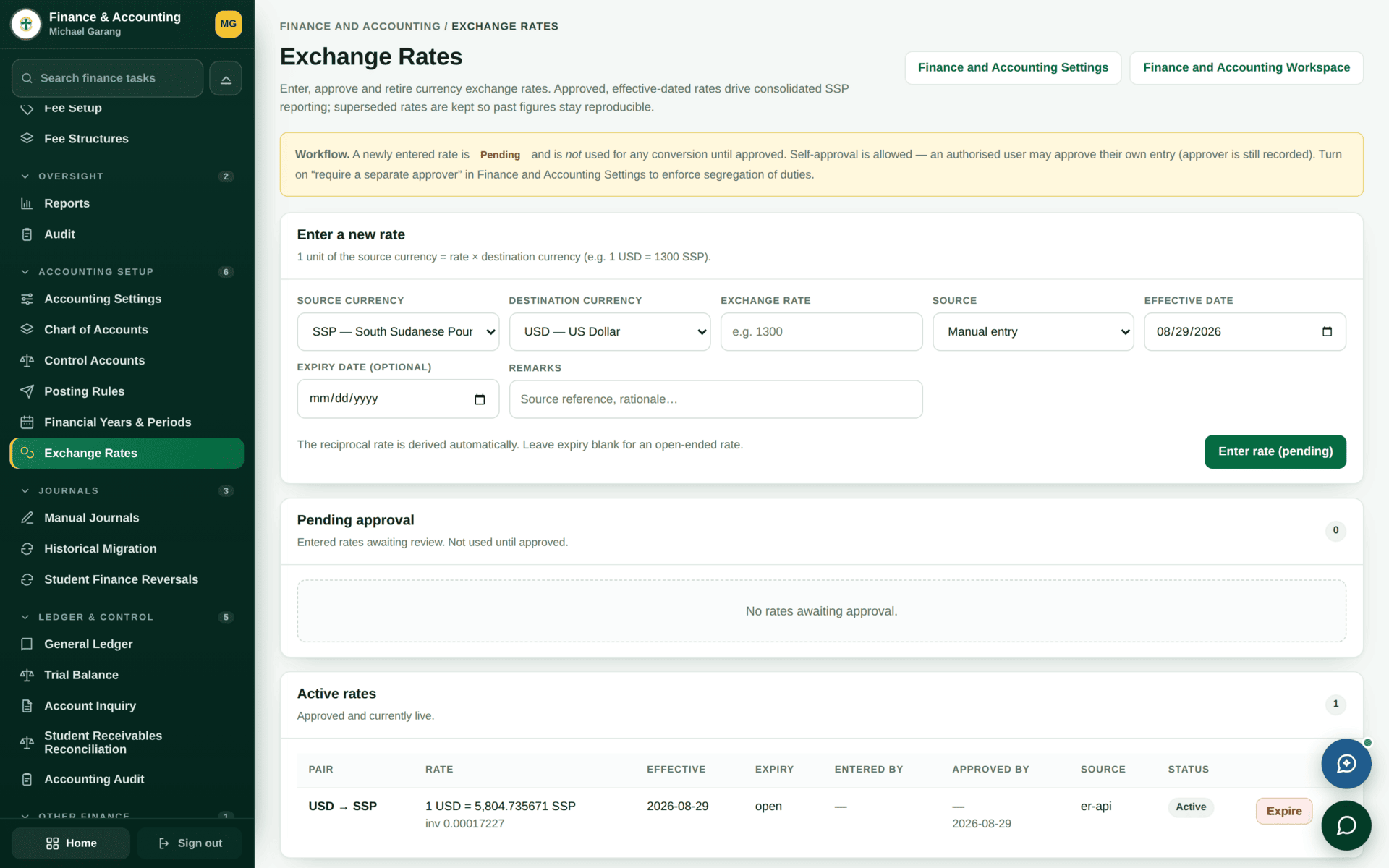
The finance dashboard has an Exchange rates — awaiting your approval queue: a new rate is proposed and approved, not simply typed in. Check that queue at the start of any day when the rate has moved, before the first foreign-currency payment is taken.
If the desk refuses
| Symptom | Cause | Fix |
|---|---|---|
| You cannot post a payment | No drawer is open | The Till tab. The badge reads No open drawer |
| The student has no invoice to pay against | They have not been billed — usually a fee-structure match failure | Student finance |
| Signing in bounces you back to the login page | Your role's landing page is one you may not open | Go straight to /admin/finance/payments-desk, and report it to ICT |
| A tab you were told about is missing | Your role does not have it | Ask a Senior Cashier or the Bursar to do that task |
| The session will not close | A count has not been entered, or a payment is mid-flight | Complete the count; a variance is allowed, a blank is not |
| A foreign-currency receipt looks wrong | The rate in force was stale | Exchange Rates — and request a reversal rather than adjusting the receipt |