Lecturer portal
The lecturer portal shows what has been assigned to you and nothing else. Everything in it is downstream of two decisions made elsewhere: who was assigned to teach the course, and who registered for it.
Running your teaching week.
LecturerHODDeanany academic staff member
- Courses assigned to you by the HOD
- Students registered for those courses
- A published timetable
Materials published, registers taken and marks submitted.
Getting in
Go to cuo-ss.sektechsoftsolutions.co.ke/lecturer and sign in with your email
address, the part of it before the @, or your staff number. If you are already signed
in to the administration portal, use Lecturer Portal at the bottom of the
sidebar instead — one login covers both.
It is not only people whose role is literally “Lecturer”. The portal opens for anyone who is academic staff by category, holds a role whose name contains “lecturer”, oversees teaching, or simply has courses assigned. That is deliberate: at CUofSS everyone appointed as academic staff teaches, and Dean, HOD and Registrar are roles laid on top of that. It also means a genuine lecturer whose staff category is wrong in HR will be refused — the fix is in HR, not here.
The dashboard
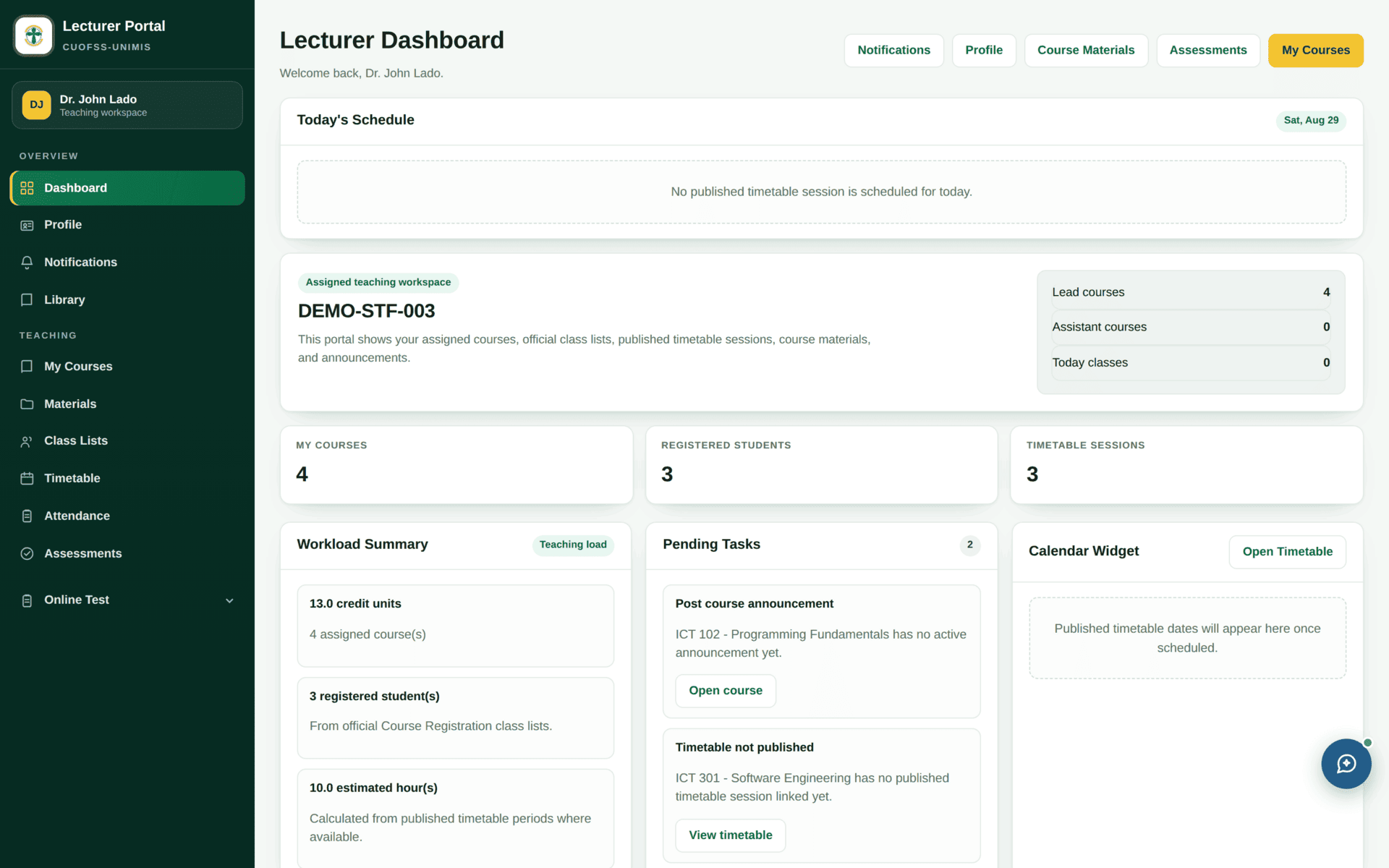
- Today's Schedule — your classes today, drawn from the published timetable. “No published timetable session is scheduled for today” may mean you have no class, or that the timetable is not published.
- Lead / Assistant courses — you can be either on a course, and the distinction matters for who submits marks.
- Workload Summary — credit units, registered students and estimated hours, the last calculated from published timetable periods.
- Pending Tasks — concrete and actionable, e.g. “ICT 102 has no active announcement yet” or “ICT 301 has no published timetable session linked yet”, each with a button that takes you there.
What each menu item is for
| Item | What it does | Where its content comes from |
|---|---|---|
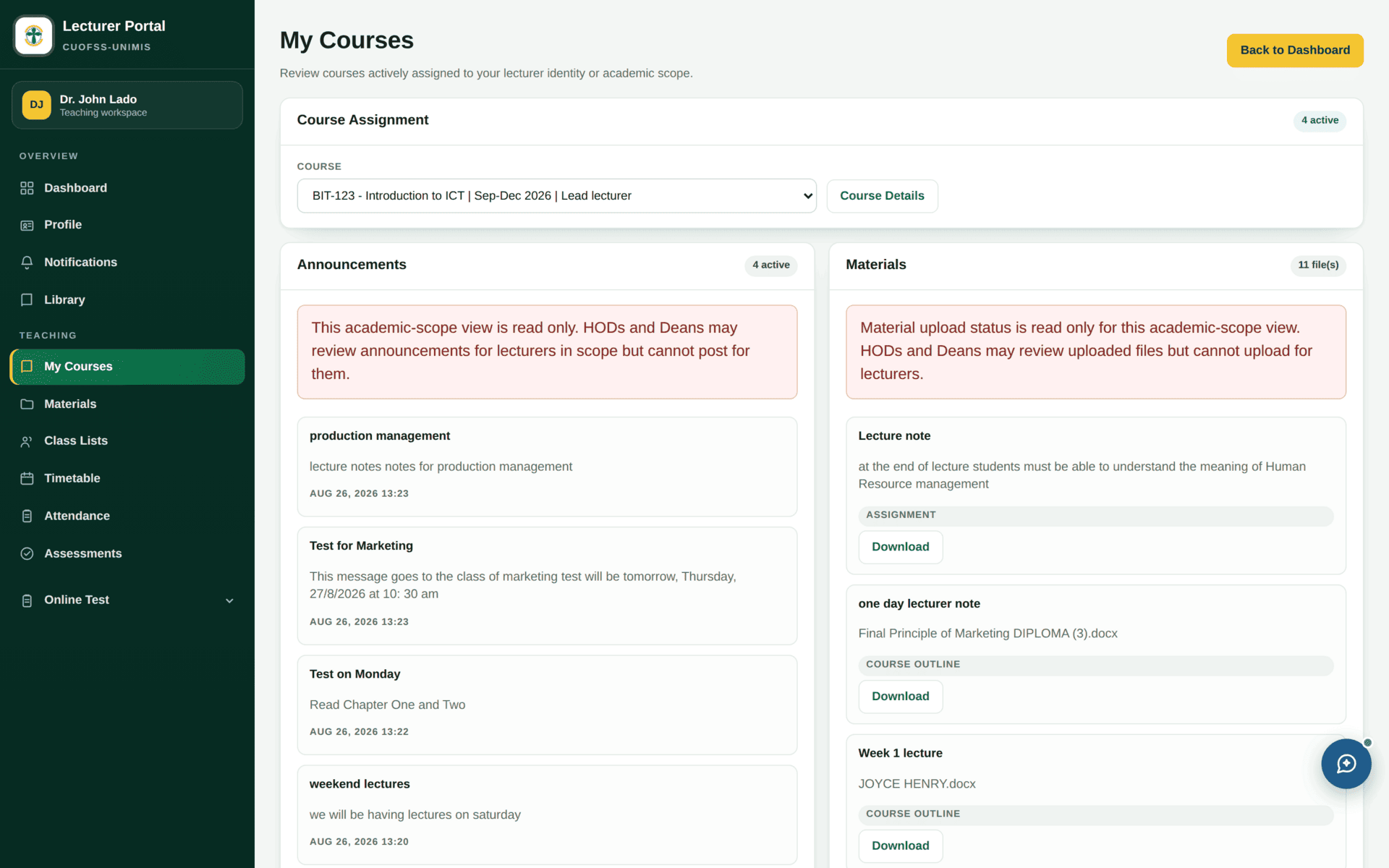
| My Courses | Your assignments, lead and assistant | Lecturer Assignment, done by the HOD |
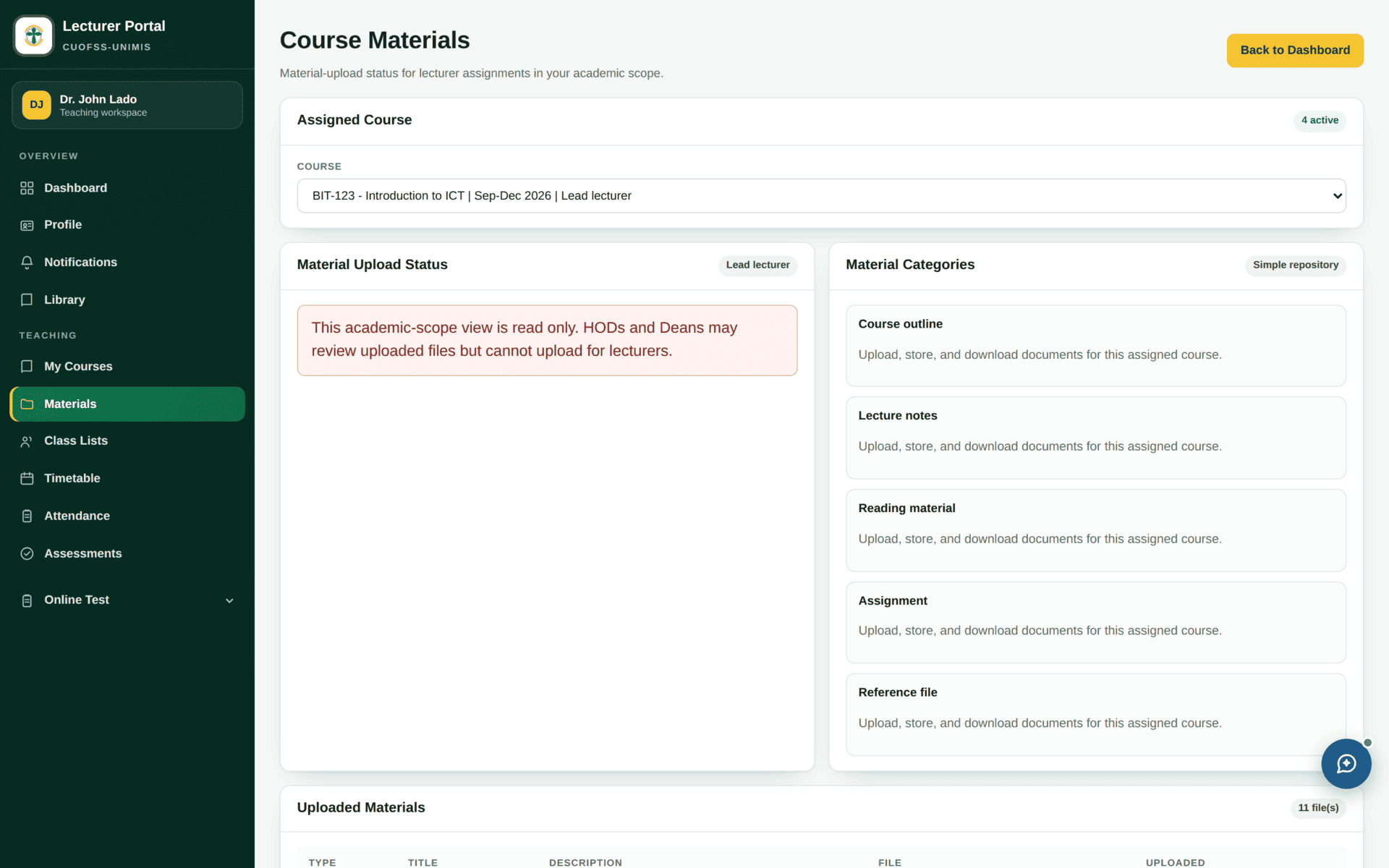
| Materials | Publish notes, slides and readings per course | You. Students see them under Course Materials |
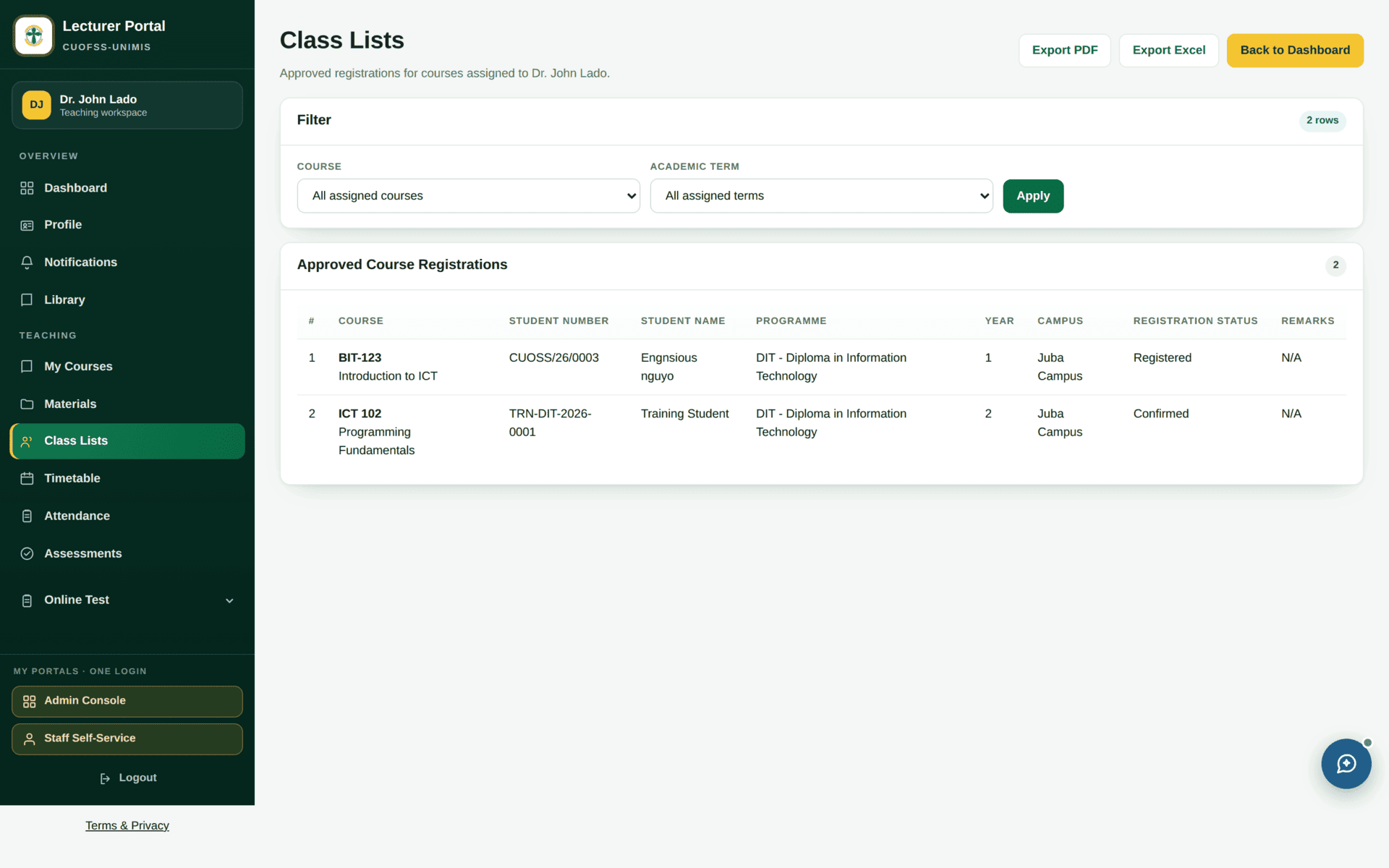
| Class Lists | The official register of who is taking your course | Verified semester registrations — not who turns up |
| Timetable | Your week, with Excel, PDF and print exports | The published timetable version |
| Attendance | Take and review registers | Your class list and the timetable session |
| Assessments | Coursework and examination components | The assessment structure set by the Exams Officer |
| Marks entry | Enter and submit marks | Your class list and the assessment structure |
| Online Test | Author papers, mark scripts | See Online tests |
| Library | Your borrowing | Library |
Entering marks
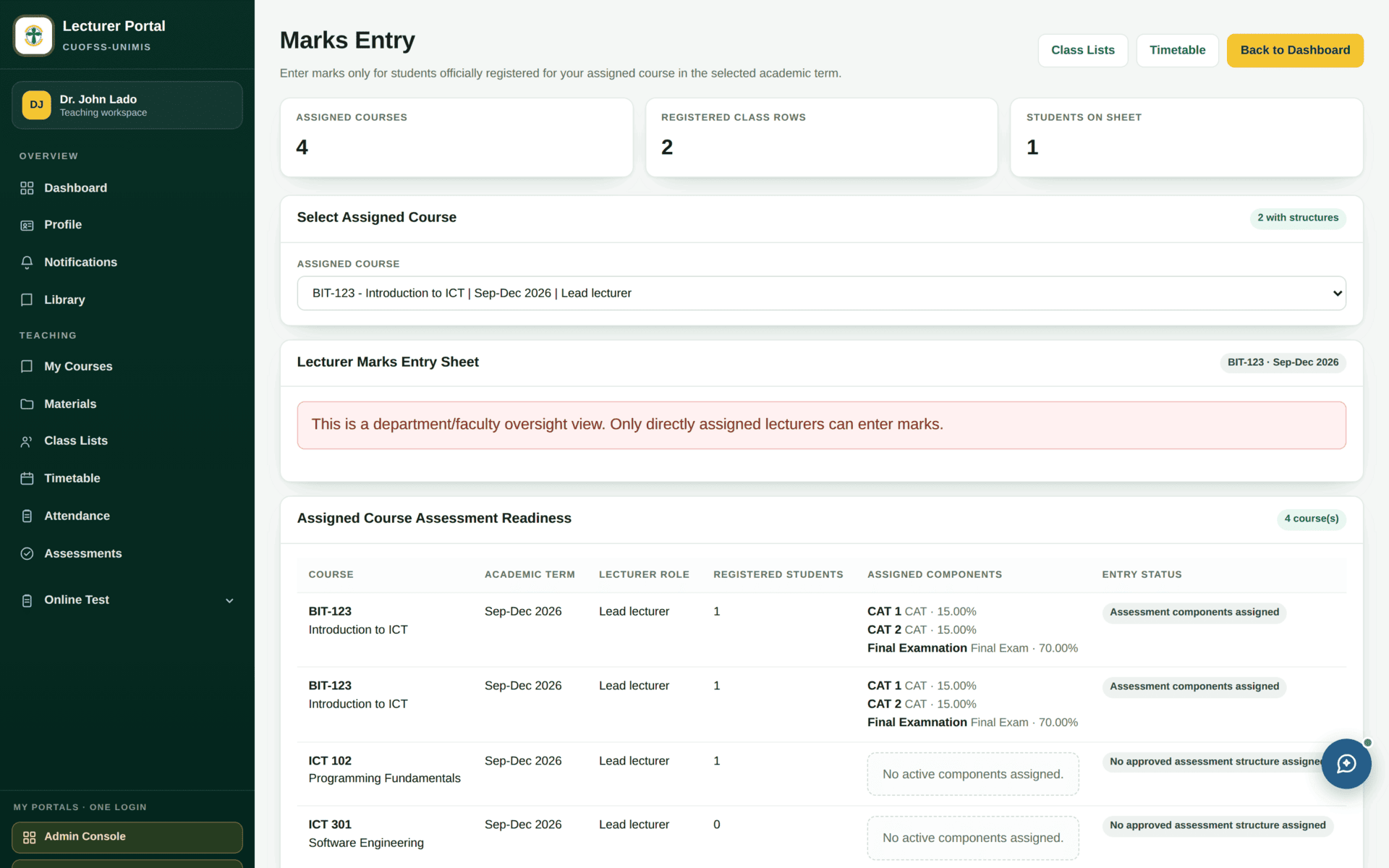
Submitting end-of-semester marks for one course
| Check first | Class Lists — is everyone you taught on it? Anyone missing must be fixed by Registry before you enter marks |
| Check second | Assessments — the components and their weights. The CUofSS standard is CAT 30 + Exam 70 |
| Open | Marks entry, choose the course and the term |
| Enter | Component by component, not student by student. Save as you go |
| Reconcile | Every registered student has a mark or an explicit absent/incomplete. Blanks become missing marks later and will be chased |
| Submit | Submission hands the marks to the result workflow. You can no longer edit them |
| Then | HOD and Exams Officer review, the result batch is approved, and only then are results released to students — see Examinations & results |
Students do not see a mark because you submitted it. It has to clear the result workflow and then be released. If a student asks why their result is blank the week after you submitted, the answer is almost always “it is with the Exams Officer”, not a portal fault.
If the portal is empty
| Symptom | Cause | Who fixes it |
|---|---|---|
| You cannot sign in at all | Account inactive, or no teaching entitlement | ICT for the account; HR for the staff category; the HOD for a course assignment |
| No courses | Nothing has been assigned to you this term | HOD, via Lecturer Assignment |
| A course, but an empty class list | Nobody has registered, or registrations are not yet verified | Registry — see Semester registration |
| Timetable empty, Today's Schedule empty | No published timetable version for your sessions | Registry — see Timetable |
| Attendance will not open for a session | Attendance follows a timetable session; without one there is nothing to register against | Registry publishes the timetable |
| Marks entry shows no components | No assessment structure for that course and term | Exams Officer |
| A student attends but is not listed | They are not registered for the course | Registry. Do not add them by hand — you cannot, and should not |