Admissions office
Applications are reviewed one office at a time. Your screen shows you only your own steps, and the chain across the top of every application says whose turn it is — so the question "why has this not moved?" always has an answer on the record itself.
Screening, verifying, reviewing and deciding applications, then publishing the result.
Admissions OfficerHODDeanDVC-Academic AffairsRegistrar
- An open admission cycle with a window and a fee
- Programmes on offer for that intake
- Applications submitted by applicants
A published admission batch and admission letters — after which Registry creates student records.
The Applications Workspace
Admissions›Applications is where the whole module starts. It is one screen with four parts, read top to bottom.
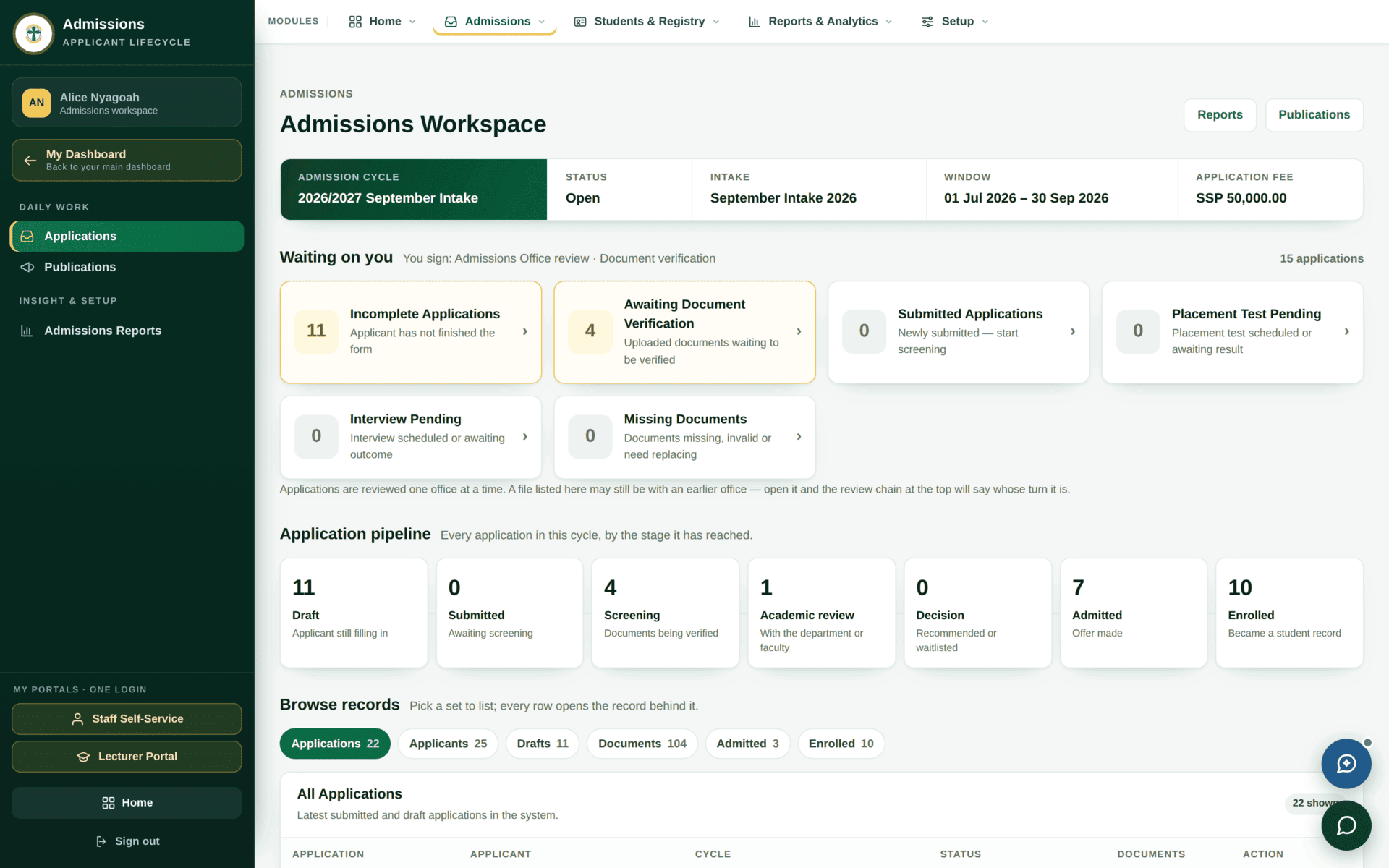
- The cycle band. Admission cycle, status, intake, application window and application fee. If this says Closed, no new applications can arrive — and that is set in Admissions Setup, not here.
- Waiting on you. Six tiles, and the line above them names the steps your office signs. For an Admissions Officer that reads You sign: Admissions Office review · Document verification. The tiles are buttons — click one to list exactly those applications.
- Application pipeline. Every application in the cycle by the stage it has reached: Draft, Submitted, Screening, Academic review, Decision, Admitted, Enrolled. This is the count you report on.
- Browse records. Tabs for Applications, Applicants, Drafts, Documents, Admitted and Enrolled, each with a count. Every row opens the record behind it.
The workspace says it plainly: “Applications are reviewed one office at a time. A file listed here may still be with an earlier office — open it and the review chain at the top will say whose turn it is.” A file appearing in your list is not the same as a file waiting for you.
The six-office review chain
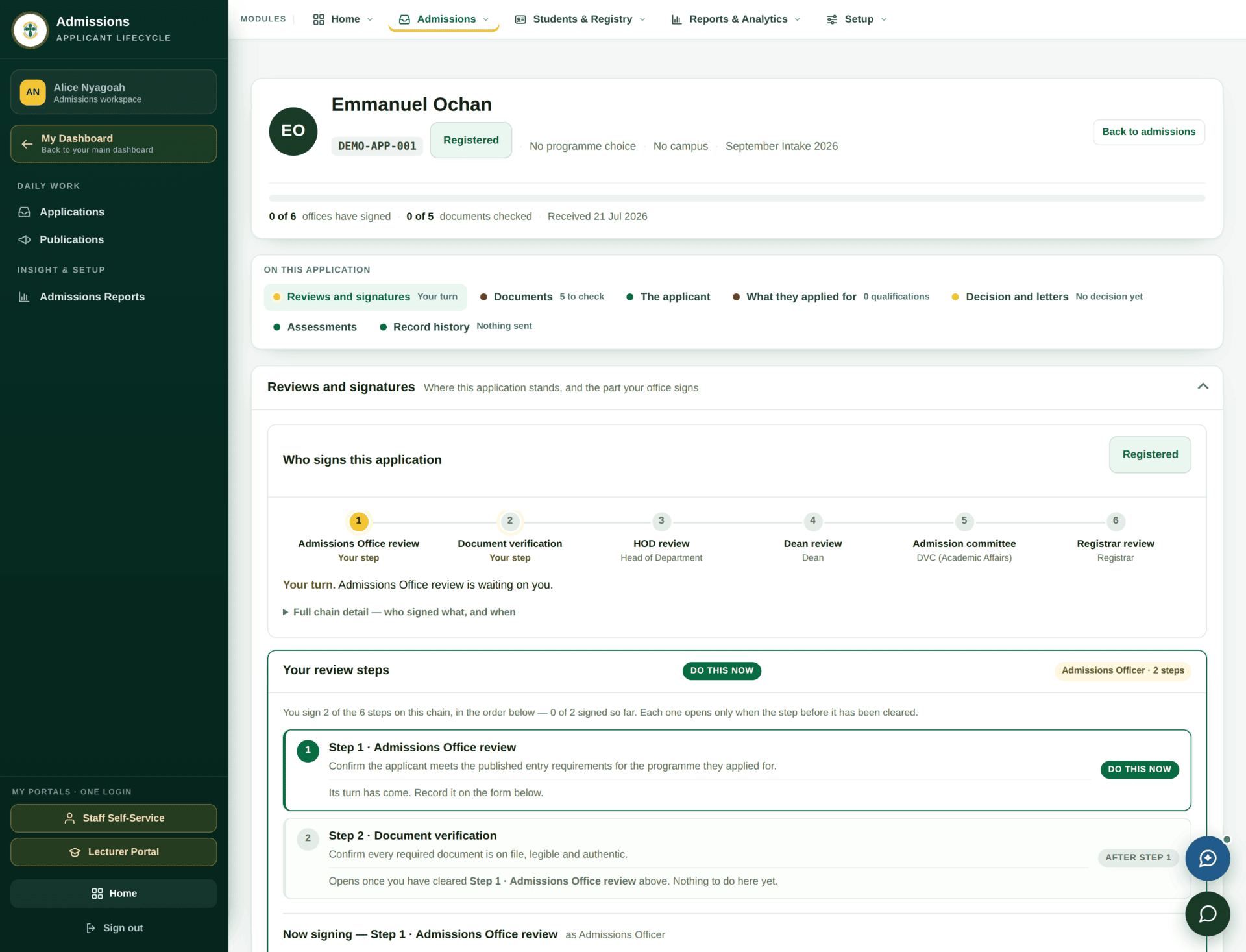
Open any application and the top of the record shows the applicant, their reference, their status, how many offices have signed, how many documents are checked, and when it arrived.
| # | Step | Signed by | What that office is confirming |
|---|---|---|---|
| 1 | Admissions Office review | Admissions Officer | The applicant meets the published entry requirements for the programme they applied for |
| 2 | Document verification | Admissions Officer | Every required document is on file, legible and authentic |
| 3 | HOD review | Head of Department | The department's academic judgement on the applicant |
| 4 | Dean review | Dean | The faculty's endorsement |
| 5 | Admission committee | DVC (Academic Affairs) | The institutional decision |
| 6 | Registrar review | Registrar | Final confirmation before the offer is issued |
Reading your own part of the chain
Under the diagram, a panel headed Your review steps lists only the steps your role signs, in order, and states the rule: “Each one opens only when the step before it has been cleared.” A step you cannot act on yet says so — After Step 1 — and explains why: “Opens once you have cleared Step 1 · Admissions Office review above. Nothing to do here yet.”
You cannot verify documents before you have completed the entry-requirements review, even though both steps belong to your office. The button for the later step stays inert. This is deliberate: it means the record can always say, truthfully, what has and has not been checked.
The section strip
Under the header, a strip of coloured dots gives you the whole record at a glance and jumps to each part:
- Reviews and signatures — the chain, and your form
- Documents — with a count still to check
- The applicant — personal details as submitted
- What they applied for — programme choices and qualifications
- Decision and letters — the outcome and any letter issued
- Assessments — placement test or interview outcomes
- Record history — what has been sent to the applicant, and when
The daily round
An Admissions Officer clearing the morning queue
| Open | Admissions›Applications |
| Check the band | Cycle 2026/2027 September Intake, status Open, window 01 Jul 2026 – 30 Sep 2026. Still open — good |
| Start with | The Awaiting Document Verification tile — click the number, not the words |
| Open a file | Read the chain first. If it says Your turn, work it; if it names another office, close it and move on |
| Step 1 | Compare the qualifications on What they applied for against the published entry requirements for their first choice. Record the decision on the form and give a reason — the reason is what the next office reads |
| Step 2 | Open Documents. Each required item: present, legible, authentic. Mark each one. The header count moves from 0 of 5 upward as you go |
| If a document is wrong | Do not reject the application. Mark the document as needing replacement — the applicant is told what to re-upload, and the file returns to you |
| When both steps are signed | The application moves to the HOD automatically. There is no “send” button — clearing your last step is the send |
| Then | Back to the workspace; the tile count has dropped by one |
The largest tile is usually Incomplete Applications — applicants who have not finished their own form. Nothing on that tile is waiting for you. It is a chasing list, best used with a bulk email from Communication, not a review list.
Publishing the result
A decision recorded on an application is not yet an admission. Admission is published in batches, which is what makes an admission list an official act with a date on it.
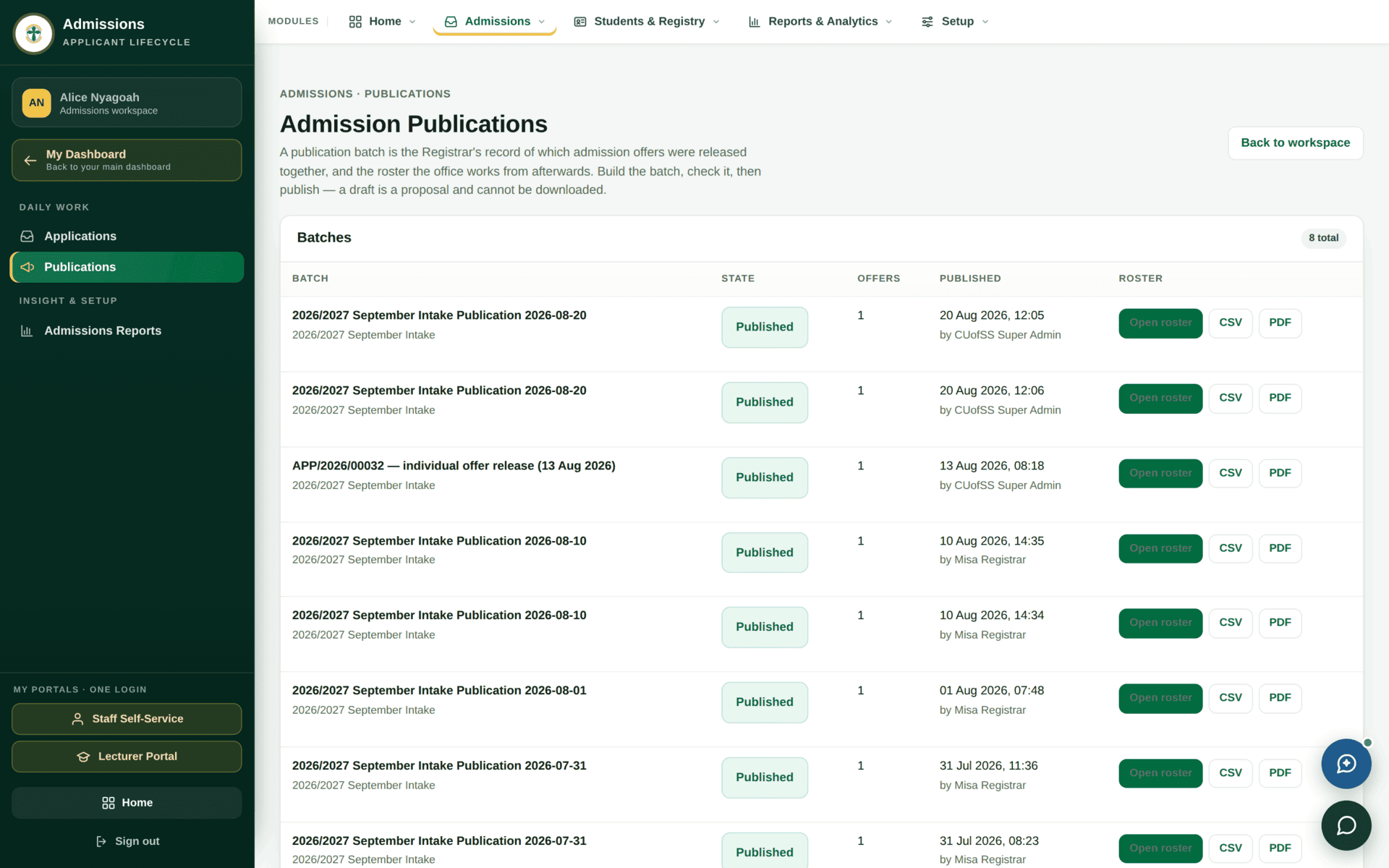
After the applicant accepts, the record is ready to become a student. That handover — applicant to student number, portal activation, first registration — is Student records & registry.
Reports and setup
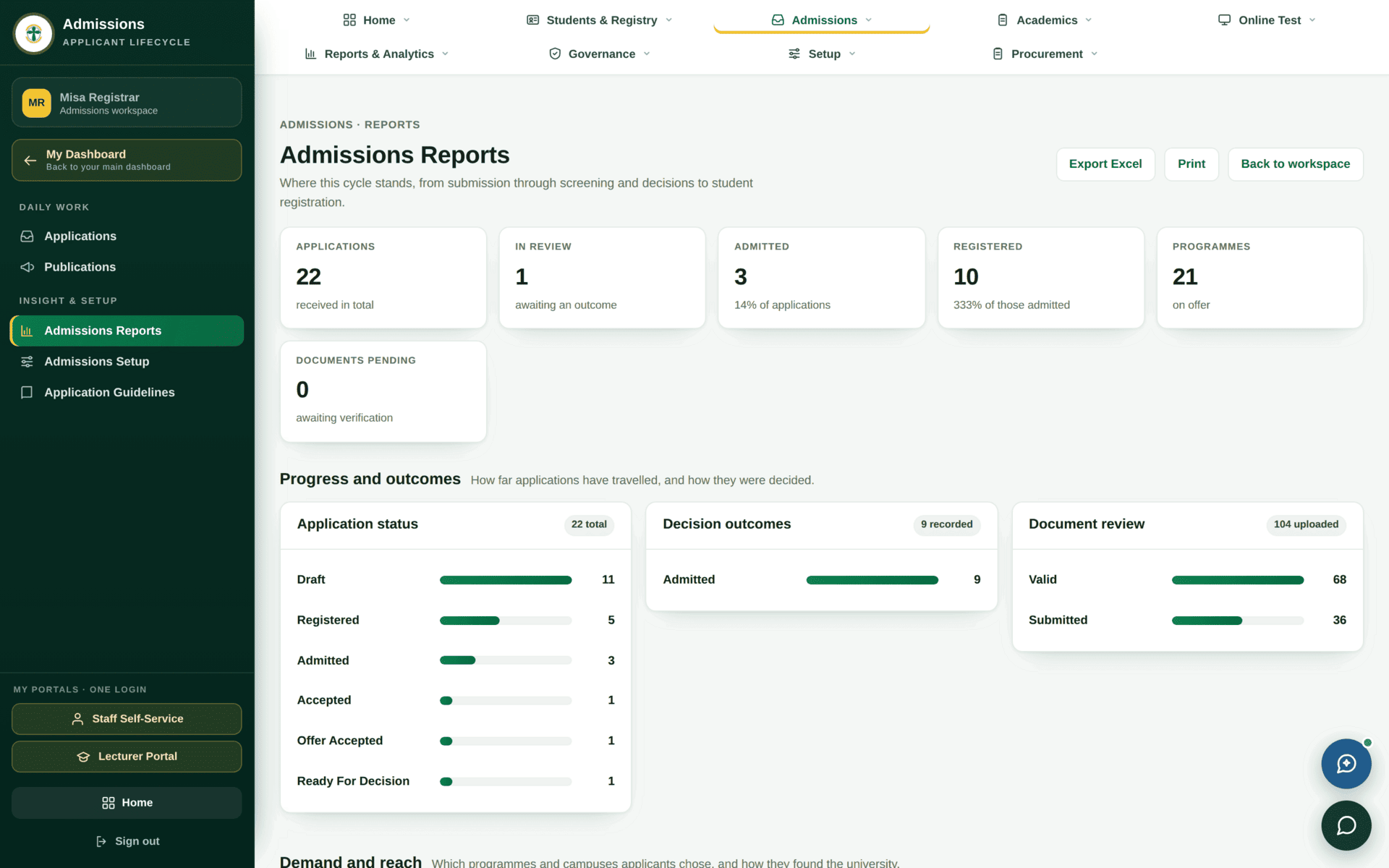
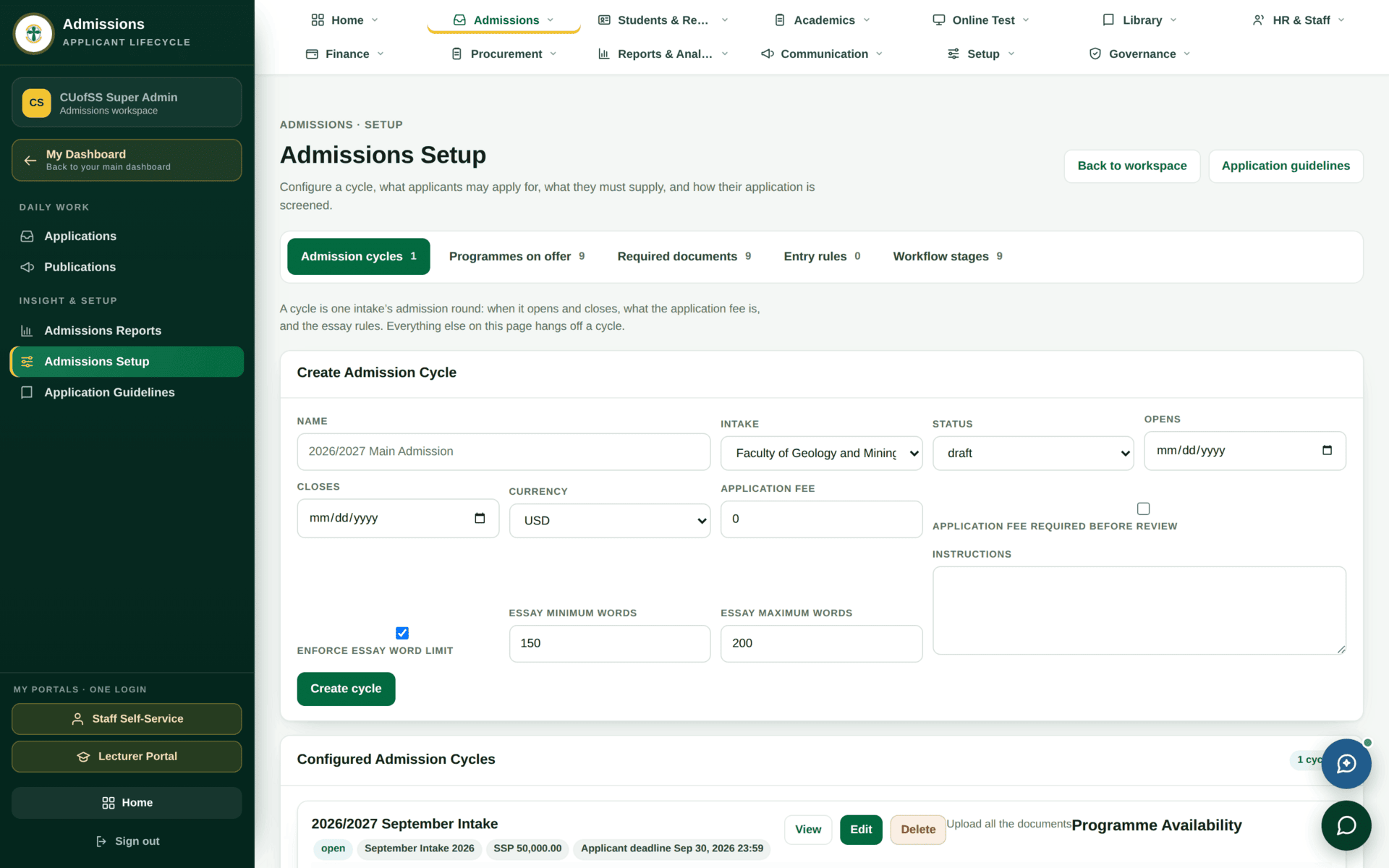
An Admissions Officer holds admissions.manage, which opens the workspace and
publications. Admissions Setup and
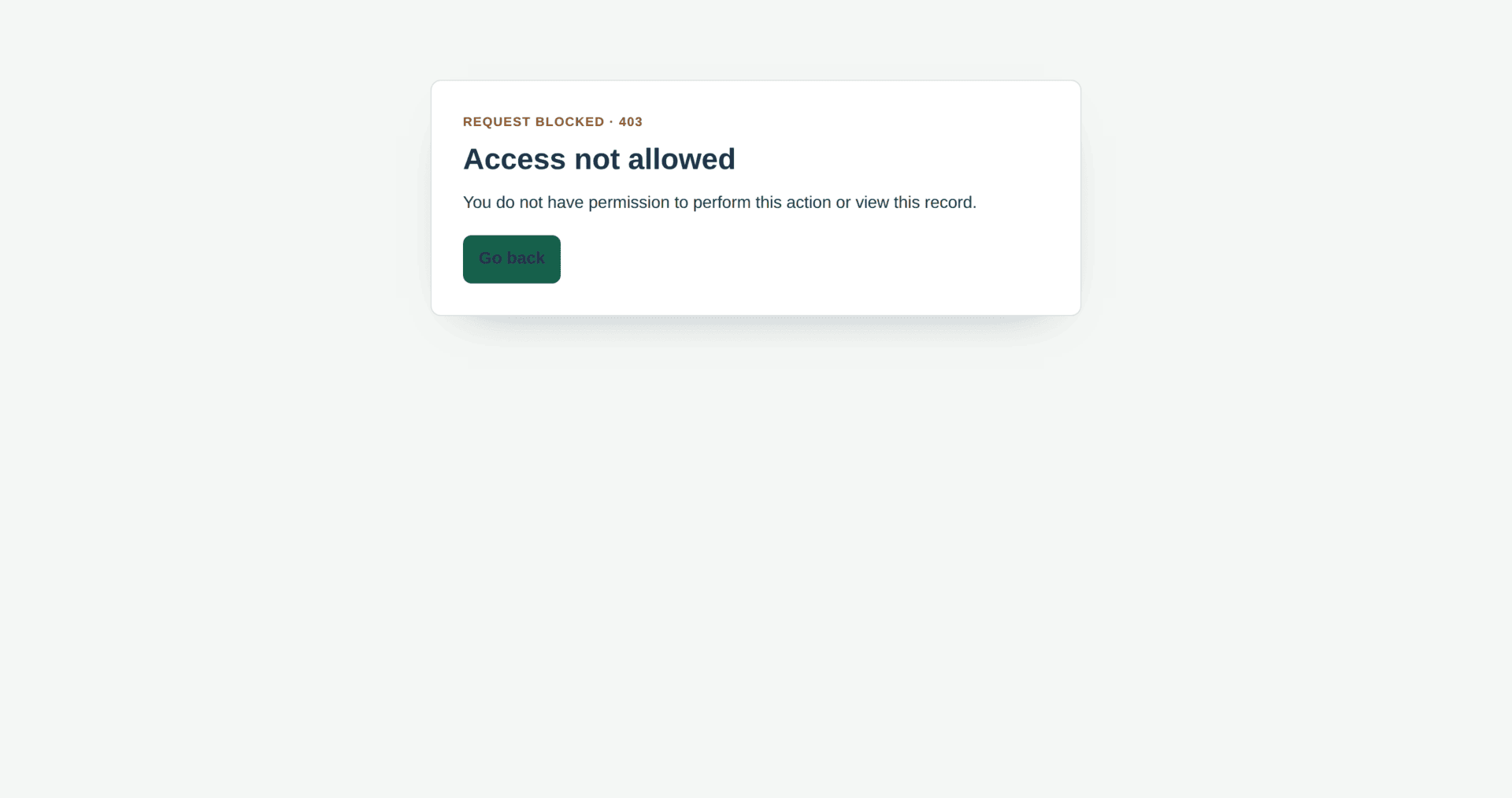
Application Guidelines need admissions.setup.manage, which is
a separate grant — so an officer who works applications every day may still be refused on
the setup screen. That separation is intentional: the rules an office is judged against should
not be editable by the office being judged.
If something will not move
| Symptom | Cause | Fix |
|---|---|---|
| An application sits for weeks at the same stage | The next office in the chain has nobody in that role, or the holder is away | Open the record; the chain names the office. Ask ICT whether that role is staffed — see Roles and what they unlock |
| Your second step will not open | Your first step is not signed | Clear step 1; the panel says exactly this |
| No new applications are arriving | The application window has closed, or the cycle is not Open | Check the cycle band, then Admissions Setup |
| An applicant says they cannot submit | A required document is missing on their side | Open Documents on their record and tell them which item is outstanding |
| Two applications from the same person | They registered twice with different email addresses | Decide on one and return the other; flag it so Registry does not create two student records |
| The applicant never received their letter | Letters follow publication, not decision | Check the batch is published, then Record history on the application for what was actually sent |